Plans & Billing
Overview
Manage your team's subscription, FloTime balance, and Partner Nodes credits.
Accessing Plans & Billing
- Click your profile icon in the top-right corner
- Under TEAMS, select the team you want to manage
- Click Settings
- Select Plans & Billing from the settings menu
Self Serve Accounts
For self-serve (non-enterprise) accounts, the Plans & Billing page lets you manage your subscription, track balances, and add resources.
Subscription Plan
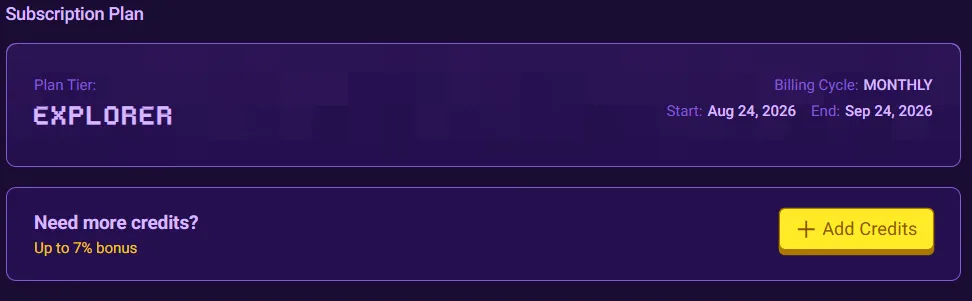
View your current plan tier, billing cycle, and any status information.
Manage Credit Split (Teams only)
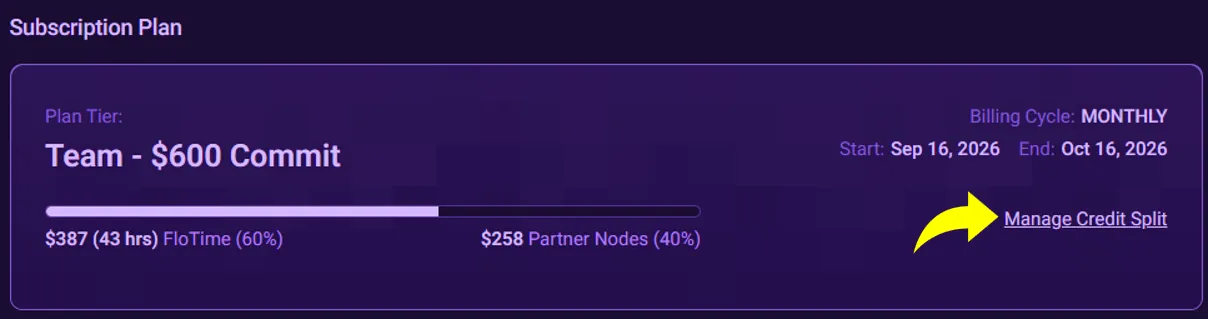
For Teams, the credit split is set with your commit and applies for the billing cycle. You can change it for the next cycle anytime. Partner Nodes Credits can be up to 50% of your commit.
- Click on Manage Credit Split.
- Adjust the split, review, and click Save.
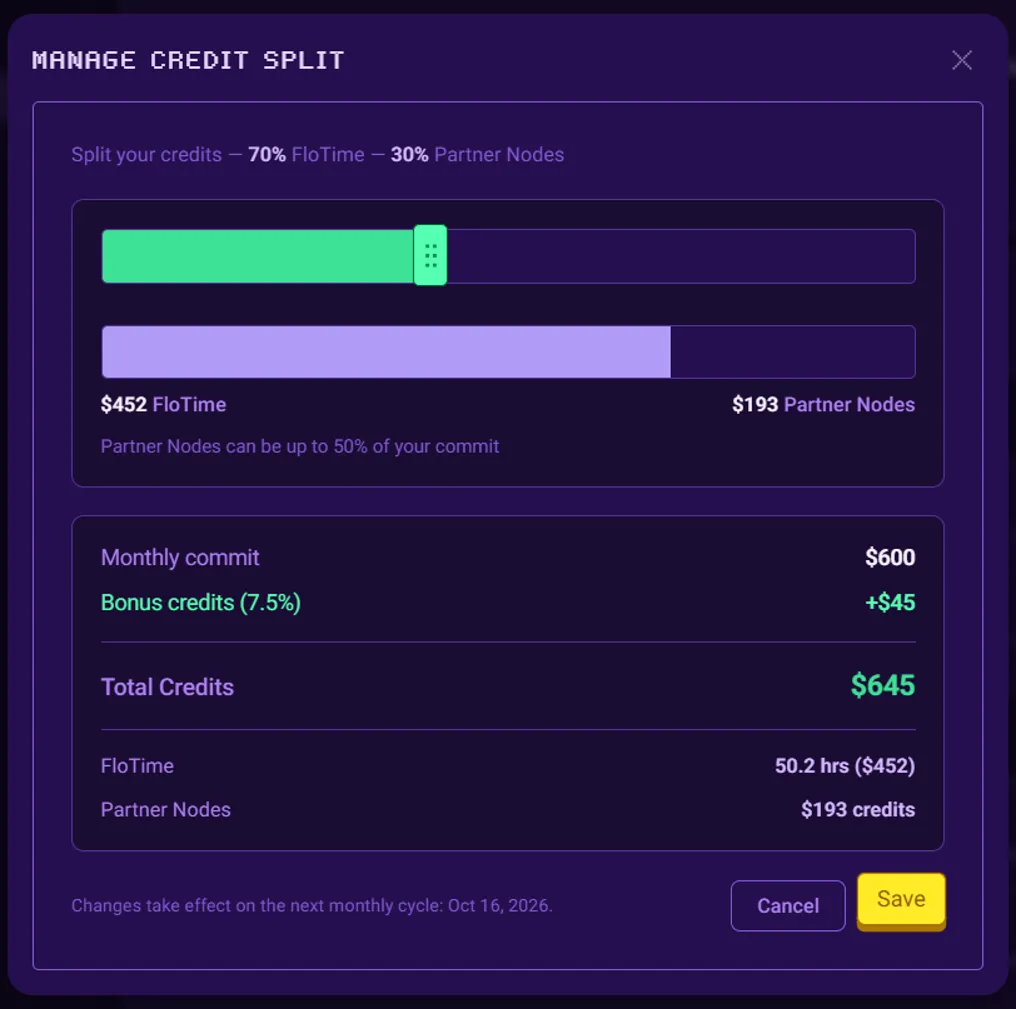
Changes to your credit split take effect on the next monthly cycle.
Add Credits
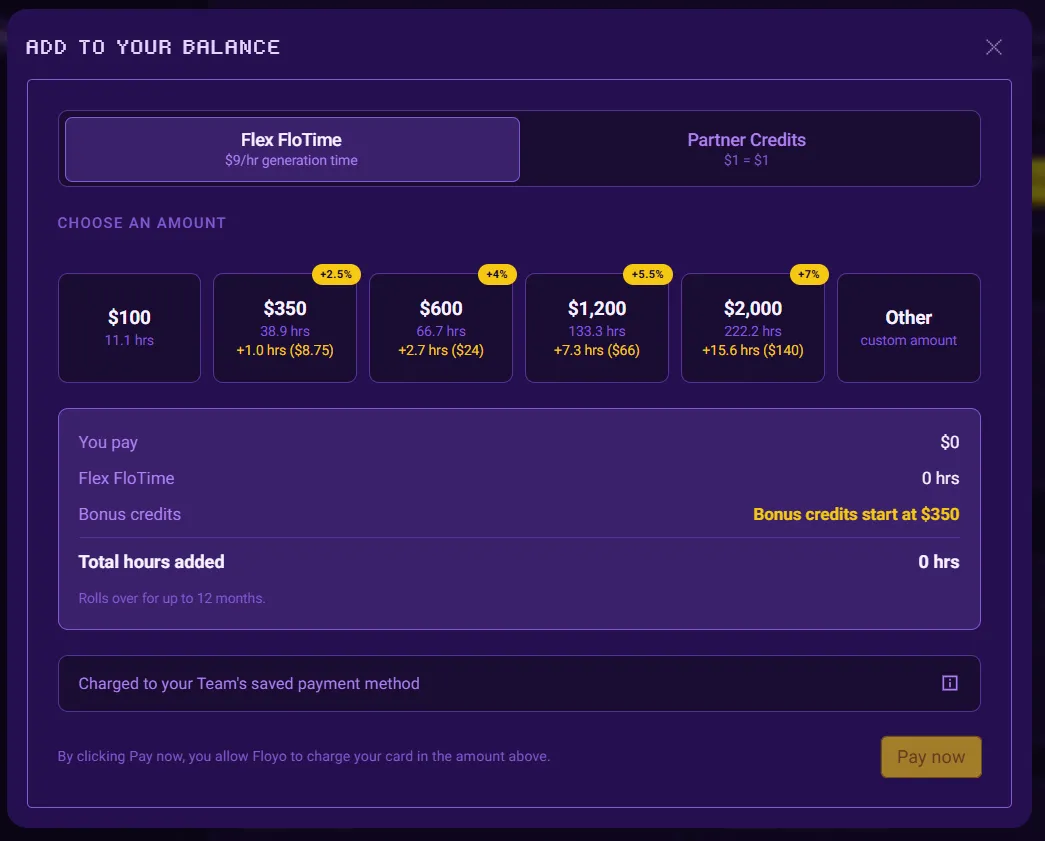
If you need additional FloTime or Partner Nodes Credits, you can purchase Flex credits any time. Flex credits kicks in after your monthly credits runs out. Rolls over for up to 12 months.
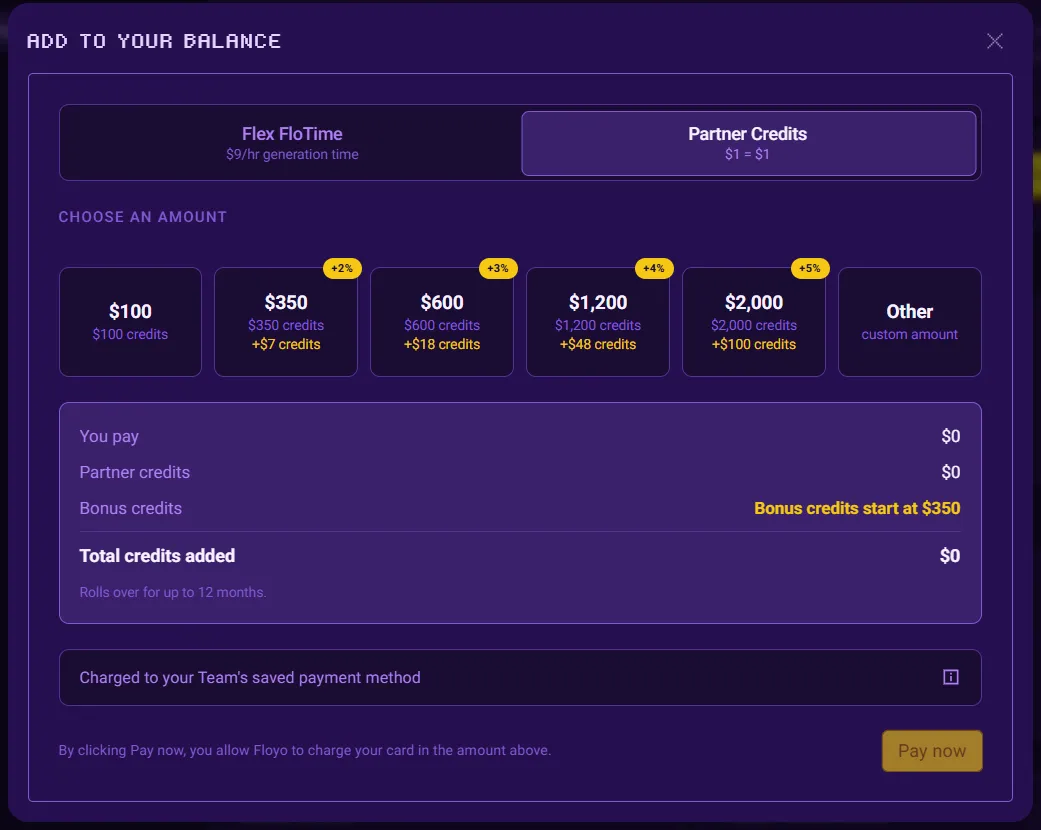
FloTime
FloTime is your GPU compute time for running workflows. You’re only charged while your workflow is actively generating. Editing, building, and loading are free.
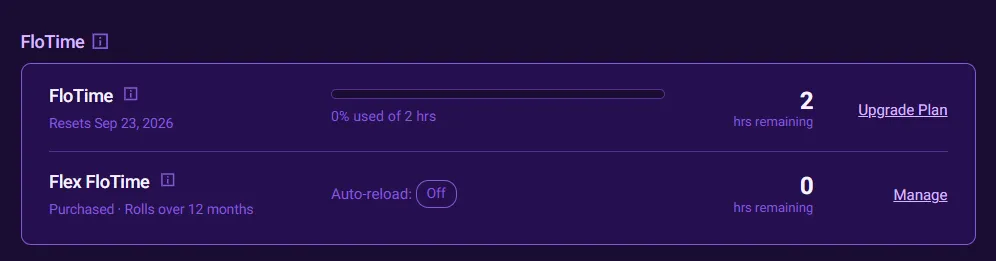
Section | Description |
|---|---|
FloTime | Included with your Subscription. Unused minutes don't roll over. Add Flex FloTime if you need extra generations. |
Flex FloTime | Extra generation time at $9/hr. Kicks in after your monthly FloTime runs out. Rolls over for up to 12 months. |
Partner Nodes Wallet
Your Partner Nodes Wallet lets you run closed-source AI models (Kling, Seedance, Nano Banana Pro, and more) via Floyo Partner Nodes. No API keys or separate accounts needed. Each Partner Node displays its cost per run (e.g., "$0.50/Run"), charged from your Partner Nodes Wallet. Workflows without Partner Nodes only use FloTime. Learn more about Floyo Partner Nodes.
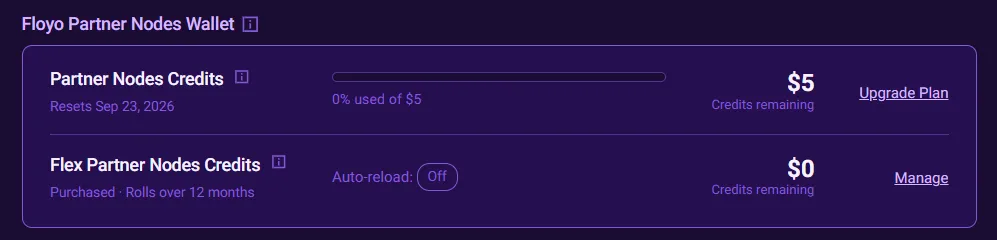
Section | Description |
|---|---|
Partner Nodes Credits | Included with your Subscription. Unused minutes don't roll over. Add Flex Partner Nodes Credits if you need extra generations. |
Flex Partner Nodes Credits | Extra generation time at $1 for $1. Kicks in after your monthly Partner Nodes Credits runs out. Rolls over for up to 12 months. |
To add Partner Nodes credits:
- Click + Add Partner Nodes Credits
- Select the amount
- Complete the purchase
Auto-Reload
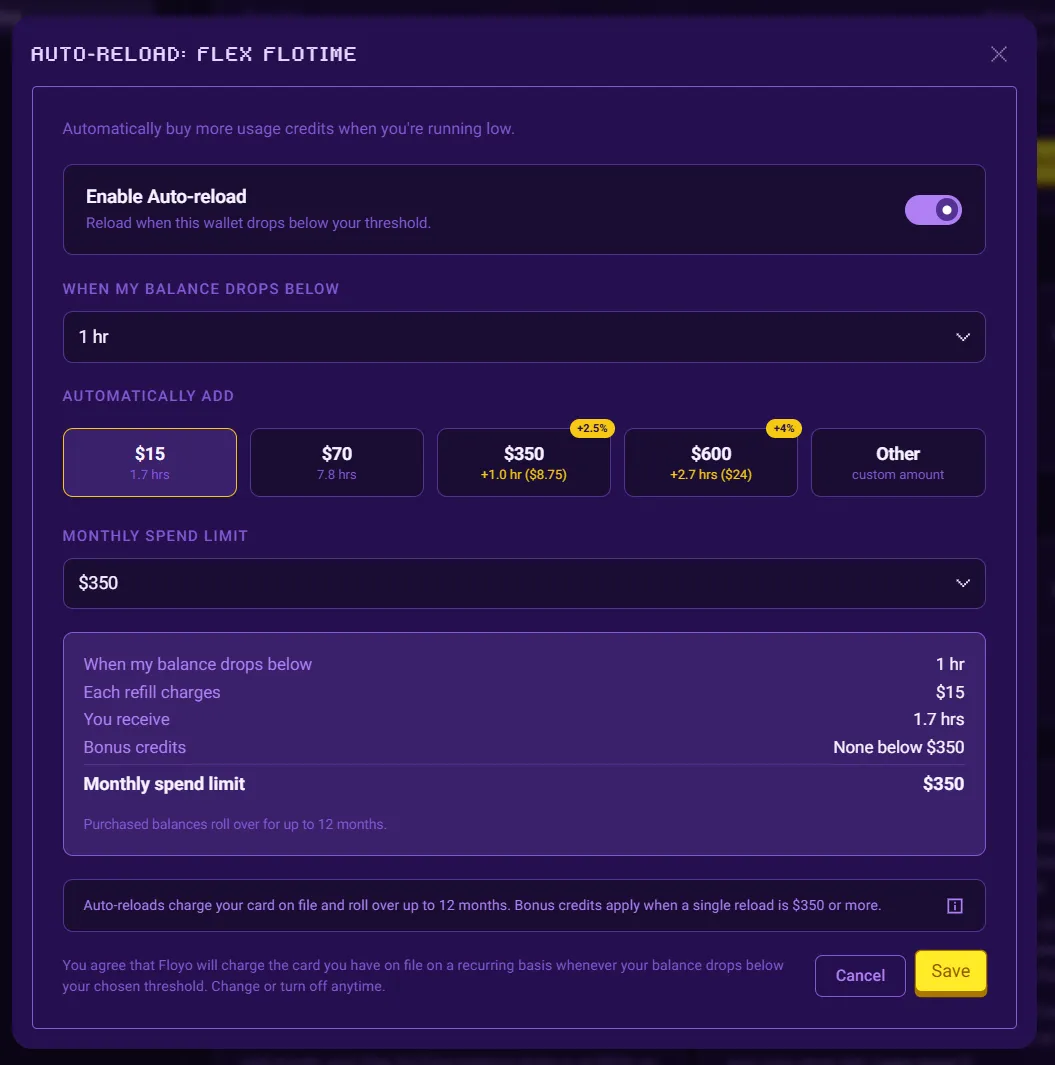
Auto-reload automatically buys more Flex credits when a wallet runs low. Set a threshold, refill amount, and monthly spend limit, then Save. Floyo charges the card on file whenever that wallet's combined included + Flex balance drops below your threshold, as long as the refill fits under your remaining monthly limit.
Refills use the same bonus ladder as Add Credits (bonuses start at a single reload of $350+). Change or turn Auto-reload off anytime. Receipts will show charges as Flex FloTime (Auto-Reload) or Flex Partner Nodes Credits (Auto-Reload).
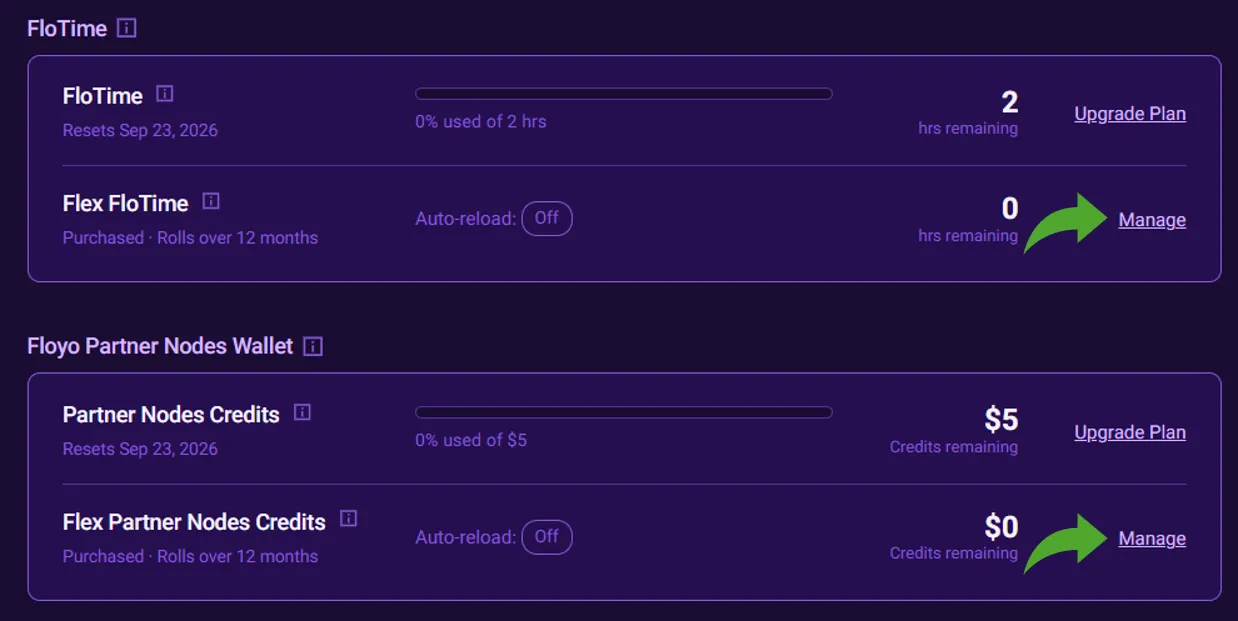
- Click Manage on the Flex FloTime and Flex Partner Node Credits sections to configure the corresponding Auto-Reload settings.
- Toggle on or off Auto-Reload
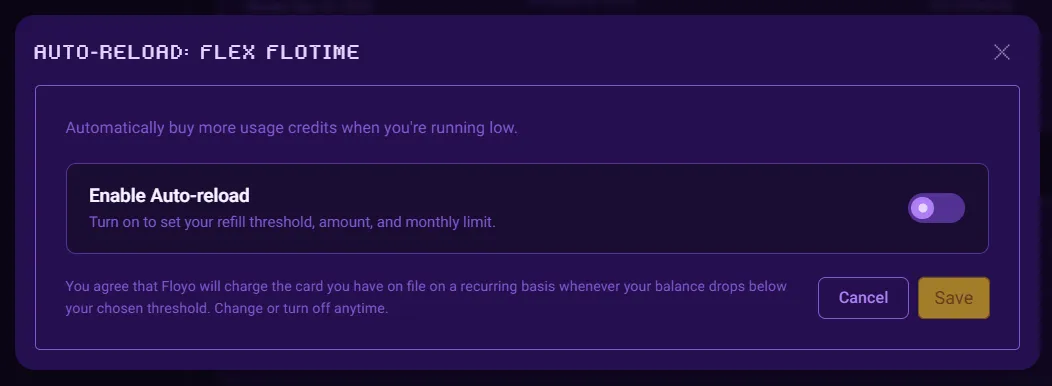
- If Auto-Reload is enabled, you will see the configuration options for the trigger threshold, refill amount, and monthly spend limit.
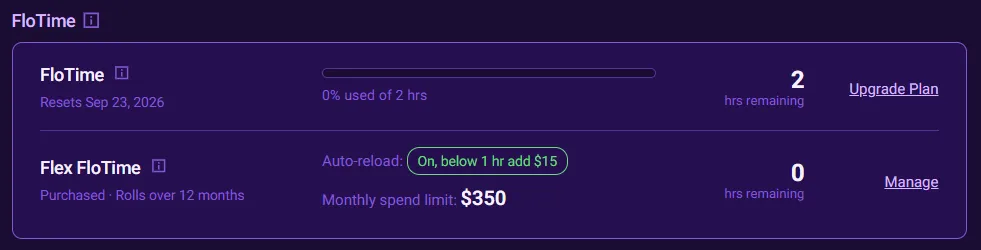
- Click Save to apply your Auto-reload configuration. The corresponding Flex FloTime and Flex Partner Nodes Credits sections will update with the set configuration.
Note: Free plans and Enterprise / org-managed workspaces do not include Auto-reload.
Billing Information
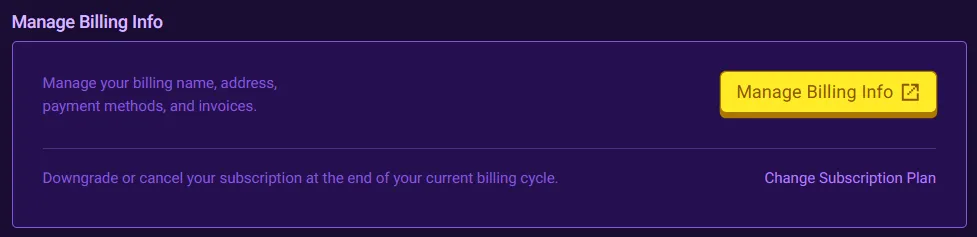
Manage your payment methods and billing details:
- Click Manage Billing Info
- Update your billing name, address, payment methods, and invoices
Cancel or Downgrade
You can also downgrade or cancel your subscription:
- Click on Change Subscription Plan
- Select the subscription plan you wish to downgrade to or select the Free tier to cancel your subscription.
Delete Team

Delete your team and all associated data. This action is permanent and cannot be undone.
- Click Delete Team
- The team must satisfy several criteria to be eligible for deletion
- The team cannot be your last Free (Personal) team.
- The team cannot have an active paid subscription.
- Team Workflows cannot be shared to any published Community Pages.
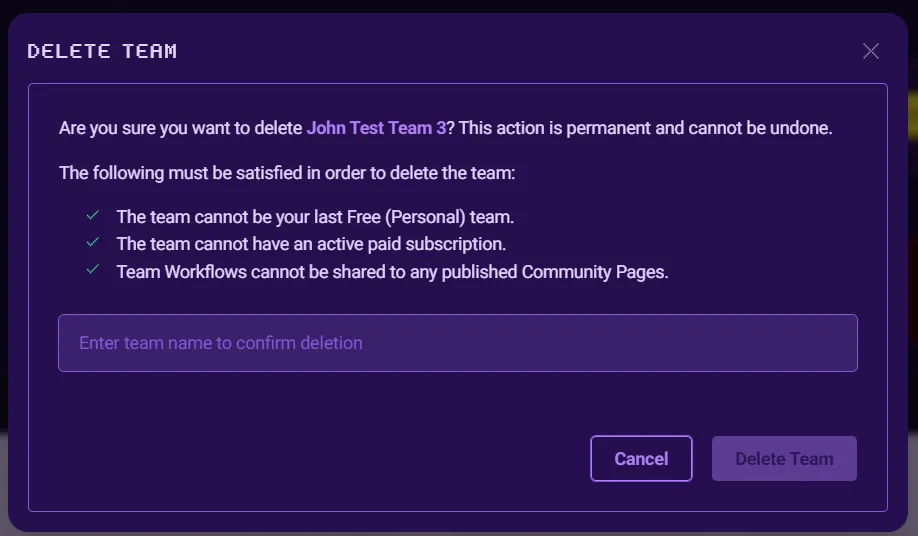
- Enter the team name as a protection measure.
- Click Delete Team to confirm deletion.
- Upon success you will be redirected to your first team's homepage.
Enterprise Accounts
For Enterprise accounts, settings and access are managed per your Enterprise agreement and may vary by account.
If you have questions about your Enterprise plan, contact your account manager.
Tips & Best Practices
- Monitor FloTime: Check your balance before starting large batch jobs
- Partner Nodes credits: Keep your Partner Nodes Wallet funded if you regularly use Partner Nodes
Troubleshooting
FloTime ran out mid-workflow?
Solution: Add Flex FloTime to continue.
Partner Nodes credits ran out mid-workflow?
Solution: Add Flex Partner Nodes credits to continue.
Can't access billing settings?
Solution: Only team Owners can access billing settings. Contact your team Owner to make changes.
Related Documentation
- Usage