Add Workflows to a Private Team
Overview
Upload workflow JSON files directly to your team's Private Homepage. This allows you to share workflows with team members without publishing them to the public community.
Accessing the Add Workflow Feature
- Go to floyo.ai
- Click on your profile icon in the top-right corner
- Click on Private Homepage in the dropdown menu
Your team's Private Homepage opens, where you can add workflows visible only to your team.
Adding a Workflow
The Add Workflow process is a 3-step wizard that guides you through naming, presenting, and describing your workflow.
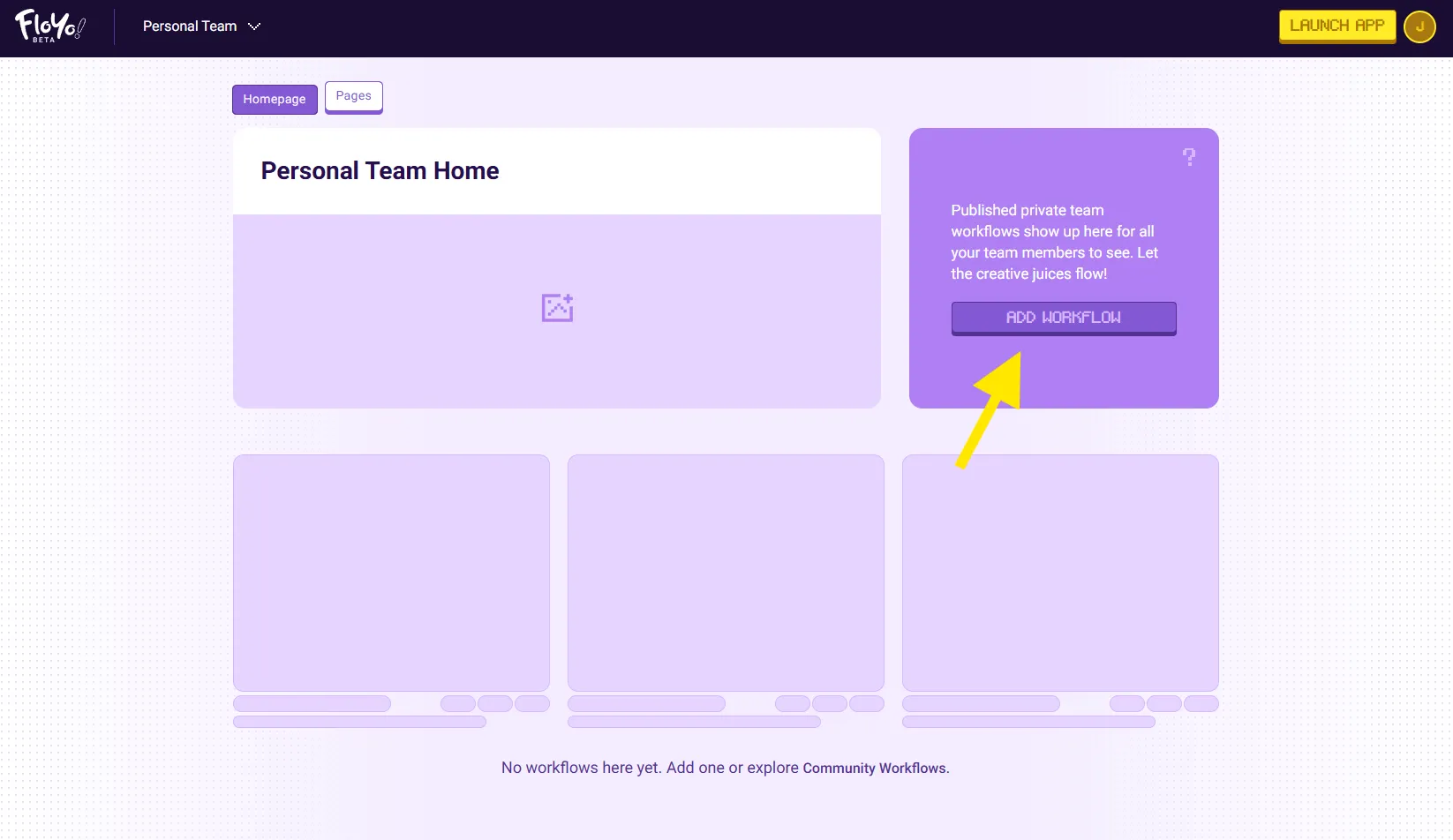
For detailed steps, please see Authoring Your Workflows
Tips & Best Practices
- Use descriptive names: Help team members quickly identify workflows by purpose
- Add preview images: Show example outputs so team members know what to expect
- Include tags: Use consistent tags across your team for easier filtering
- Write clear descriptions: Explain inputs, outputs, and any special requirements
- Test before uploading: Ensure your workflow runs successfully before sharing
Troubleshooting
Workflow JSON won't upload?
Solution: Ensure the file is a valid JSON format exported from ComfyUI. Check that the file isn't corrupted and is under the size limit.
Scan failed message?
Solution: The workflow JSON may contain errors or unsupported nodes. Try opening the workflow in the Floyo canvas first to verify it works correctly.
Workflow not appearing for team members?
Solution: Team members may need to refresh their Private Homepage. Ensure they're signed in to the same team where the workflow was added.