Floyo MCP
Use Floyo MCP to connect AI agents to Floyo over the Model Context Protocol. Once connected, your agent can discover workflows, start runs, inspect outputs, and upload files into your team’s private storage — all from chat, without opening the Floyo app.
Ask your AI to build it
Connect Floyo to the AI assistant you already use. Every workflow on the platform, available right in the chat.
Works with Claude · ChatGPT · Cursor · Codex · Antigravity and any MCP-compatible client.
- Find the right workflow — Describe what you're making. Your assistant searches every workflow on Floyo, picks the best fit, and tells you why.
- Run it and get your outputs — Hand it your images, let it run the workflow, and get the finished files back without leaving the chat.
- Your team's workflows too — Point it at a team and its private workflows, files, run history and costs are all there.
Introduction
Floyo MCP is a remote MCP server hosted by Floyo. Your agent talks to the server over HTTPS; the server translates tool calls into authenticated requests to Floyo on your behalf. Workflows execute on Floyo infrastructure, so you do not need a local GPU.
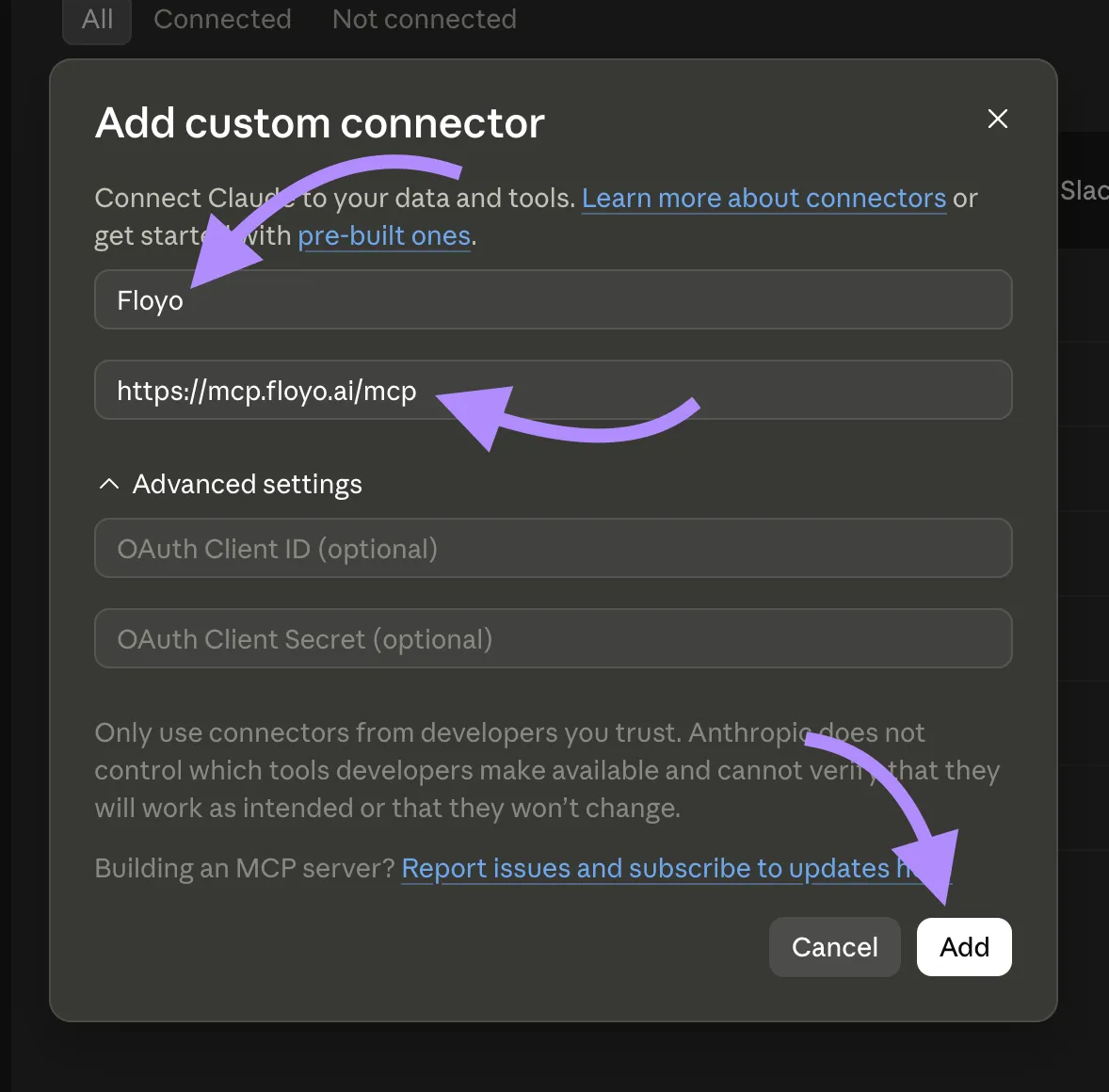
MCP Server URL: https://mcp.floyo.ai/mcp
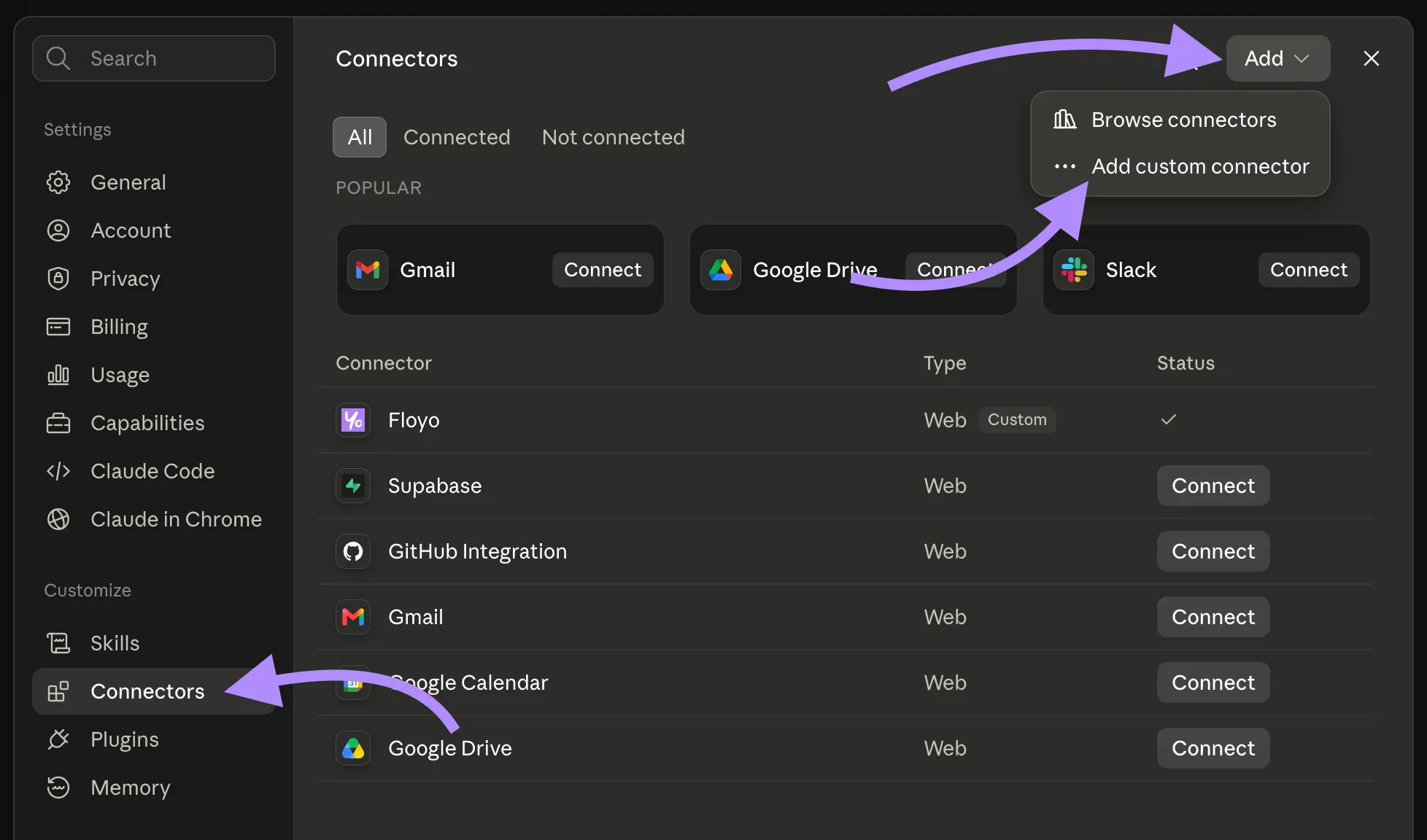
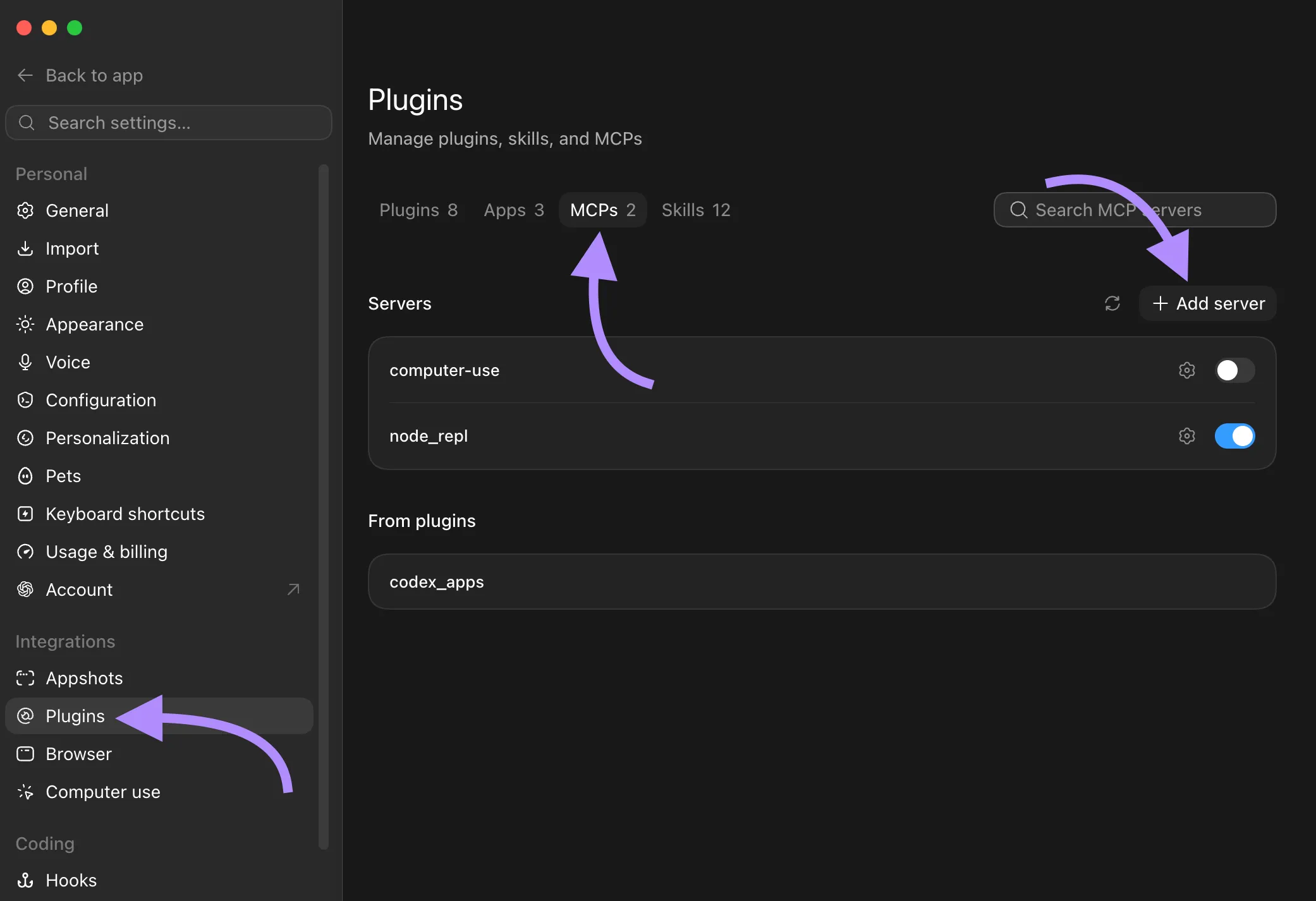
Any MCP-compatible client that supports remote HTTP transport and OAuth can connect. This page covers first-class setup for Claude Desktop / Web, Claude Code, ChatGPT, Codex, Cursor, Antigravity IDE, and Antigravity CLI.
Prefer raw HTTP and API keys for scripts or CI? See Floyo API - Introduction instead. Floyo MCP is designed for interactive agents and uses Floyo OAuth — you never paste a Floyo API key into your agent config.
Install Instructions
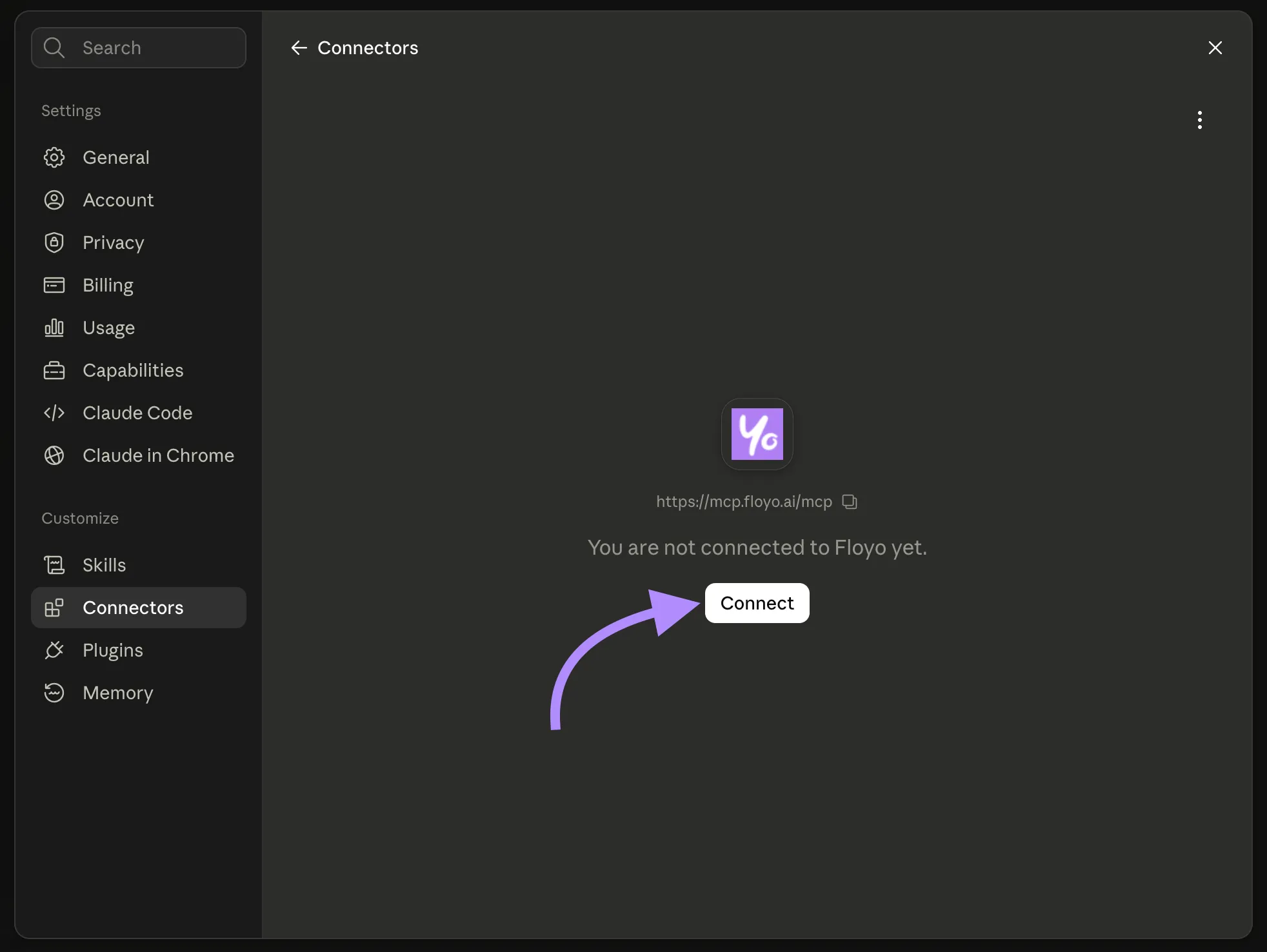
You need a Floyo account before connecting. During setup, your client opens a browser so you can sign in with Floyo OAuth and approve access.
Open the client you use:
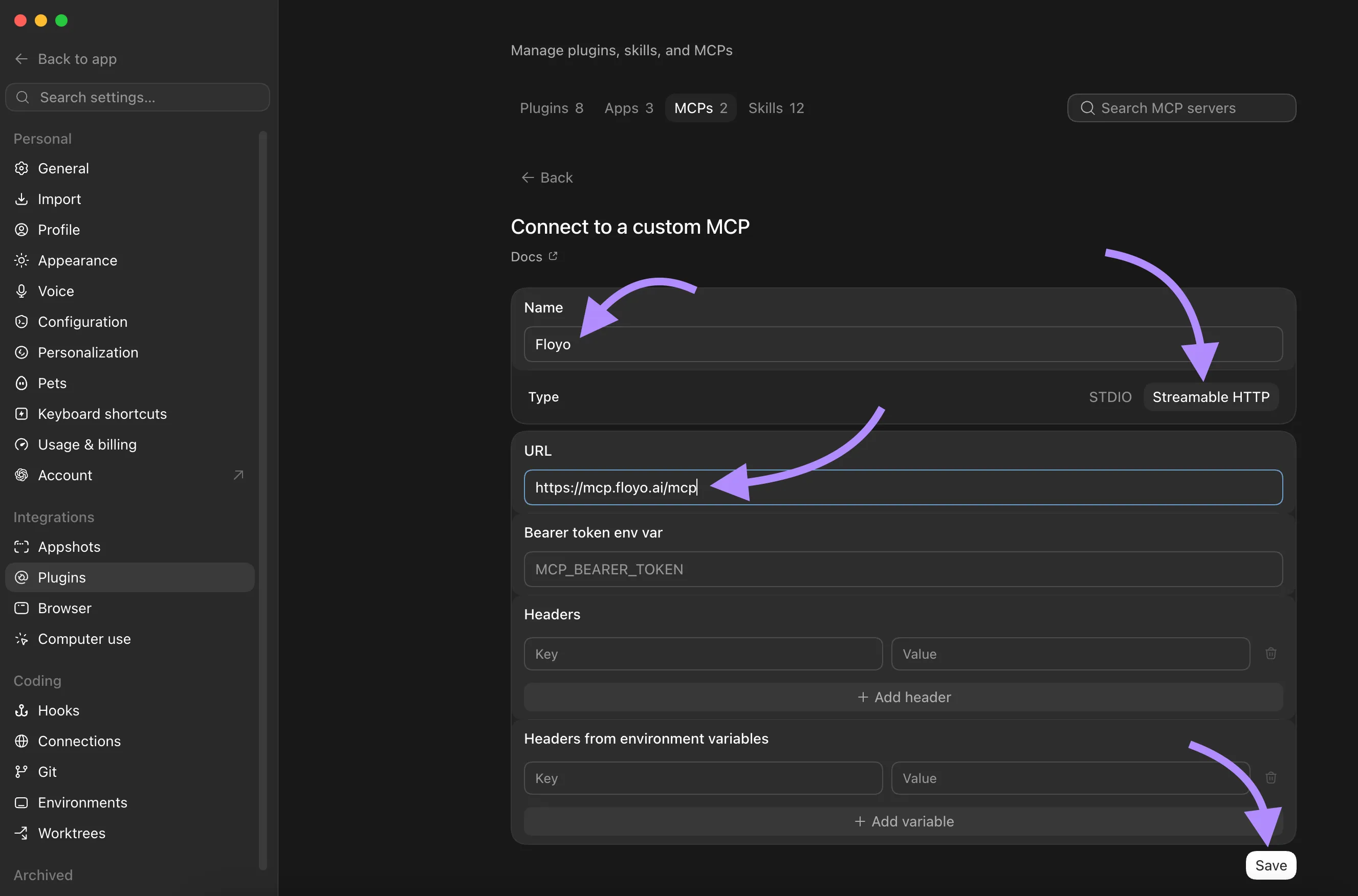
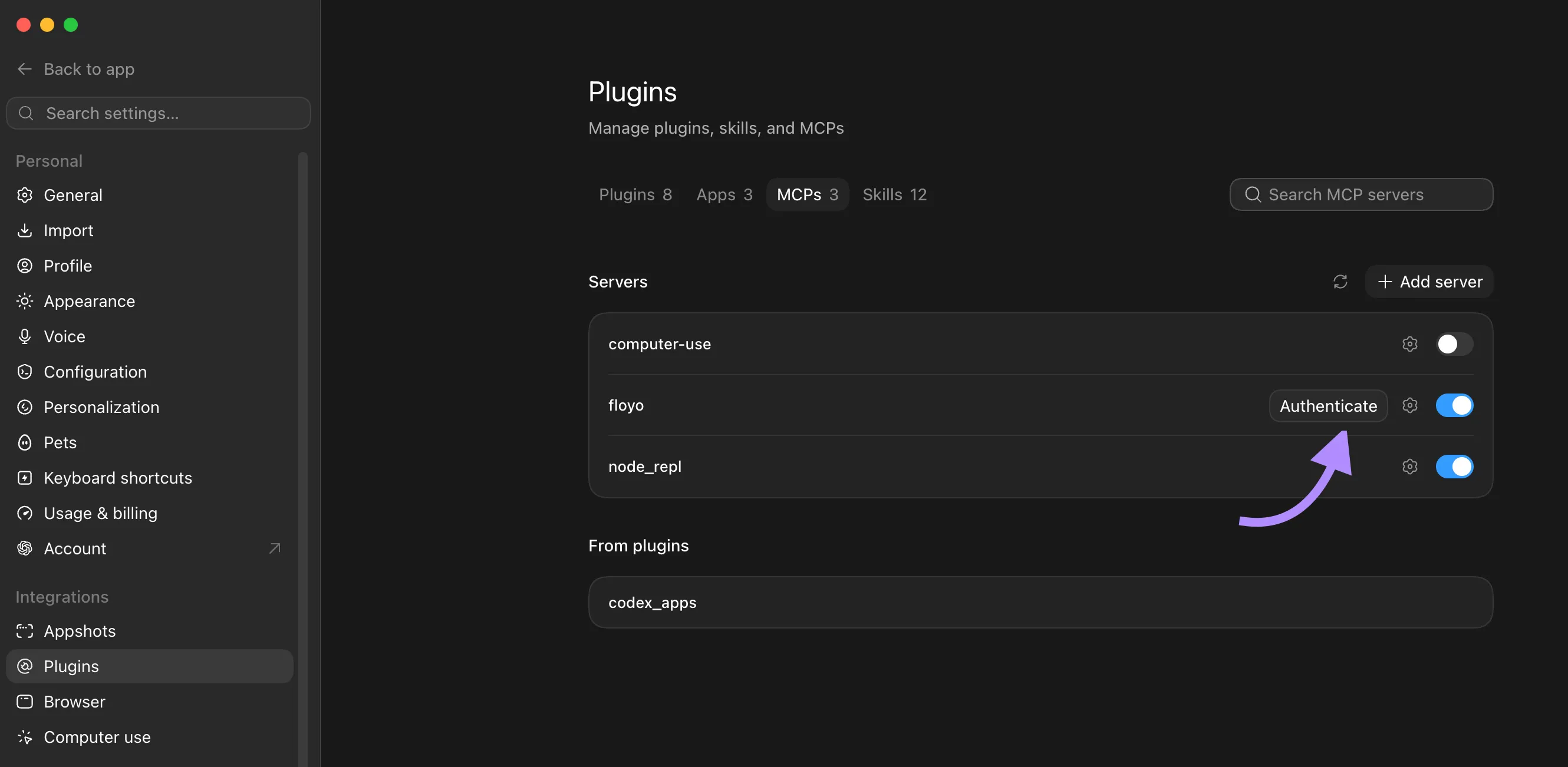

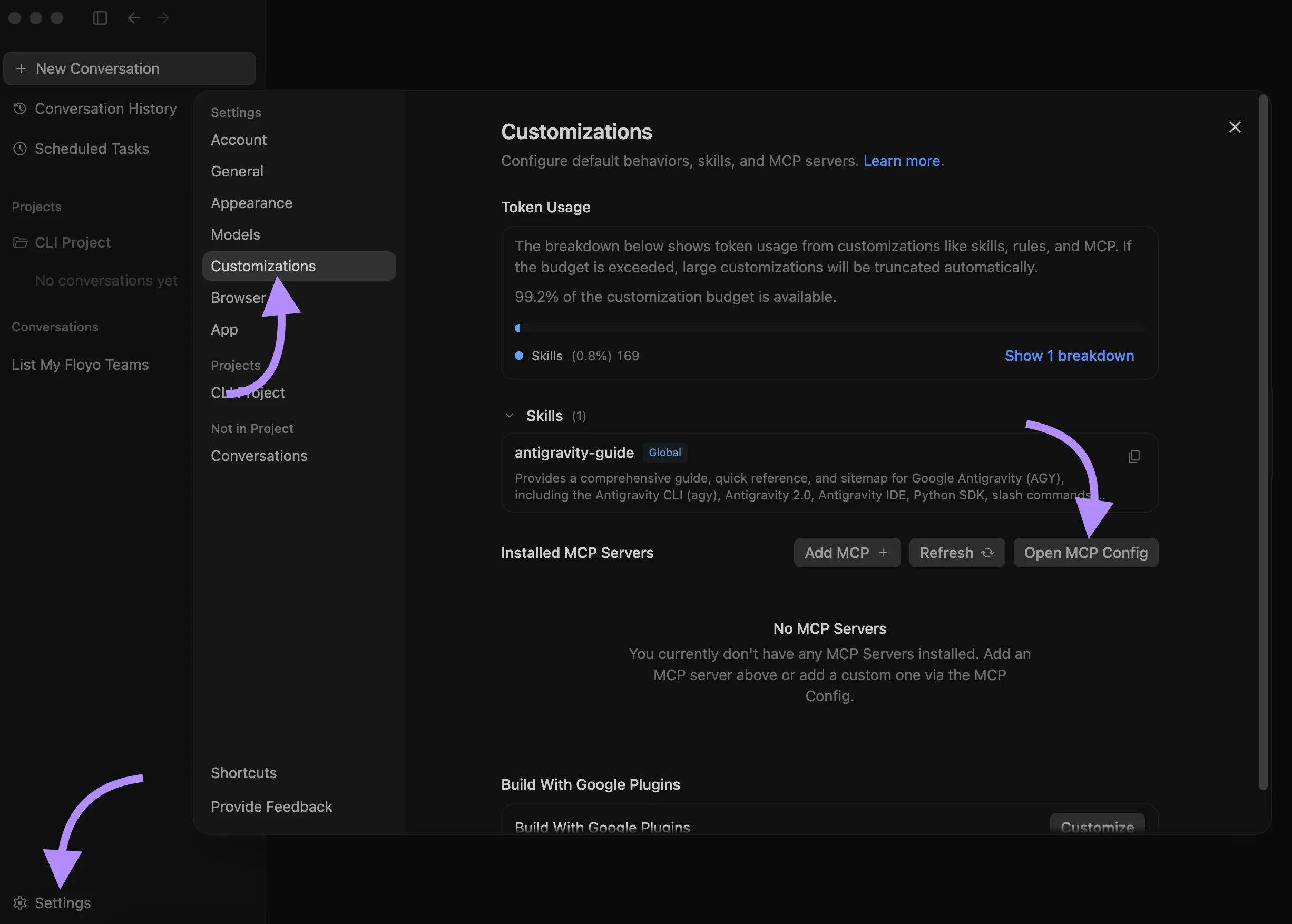
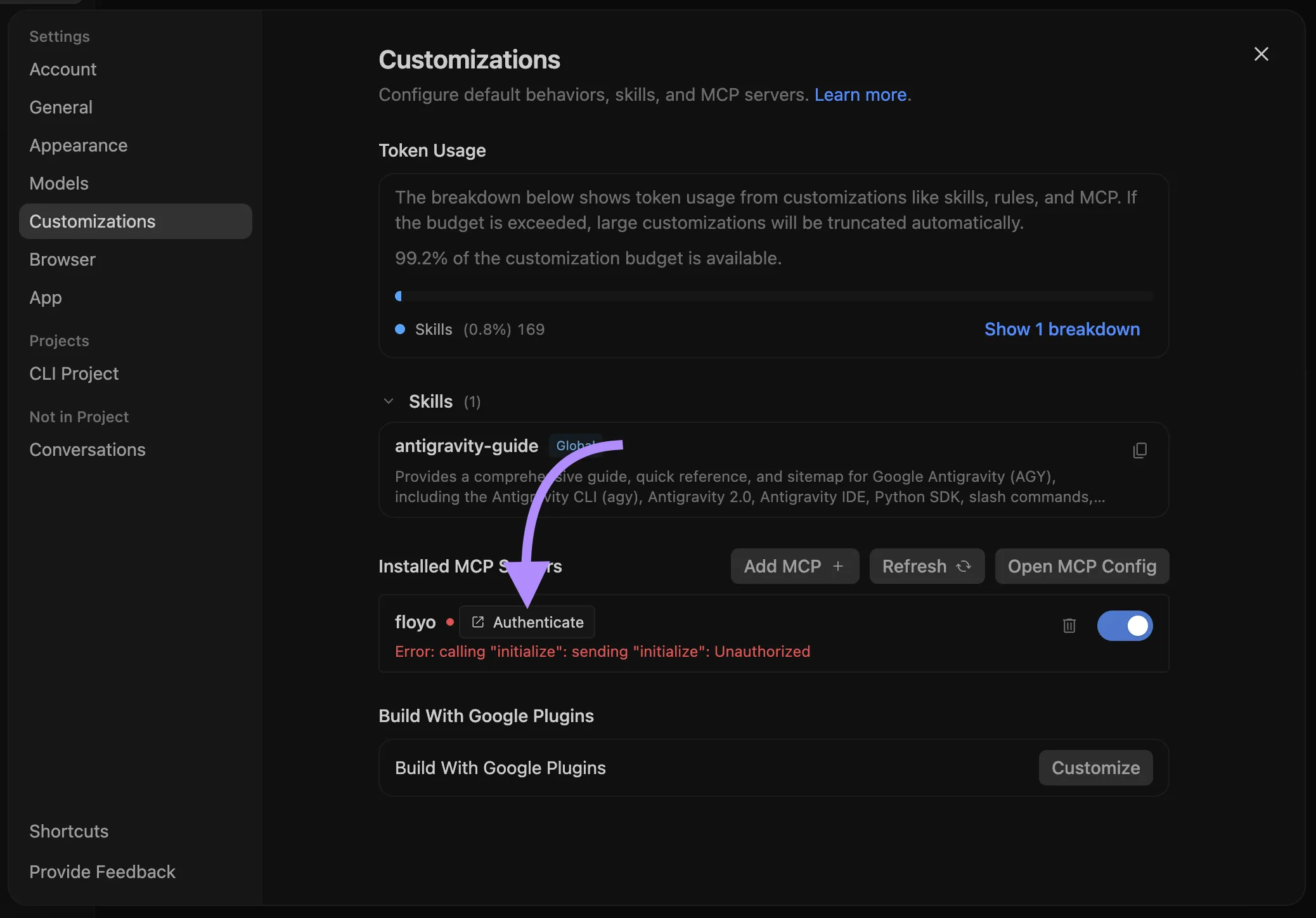
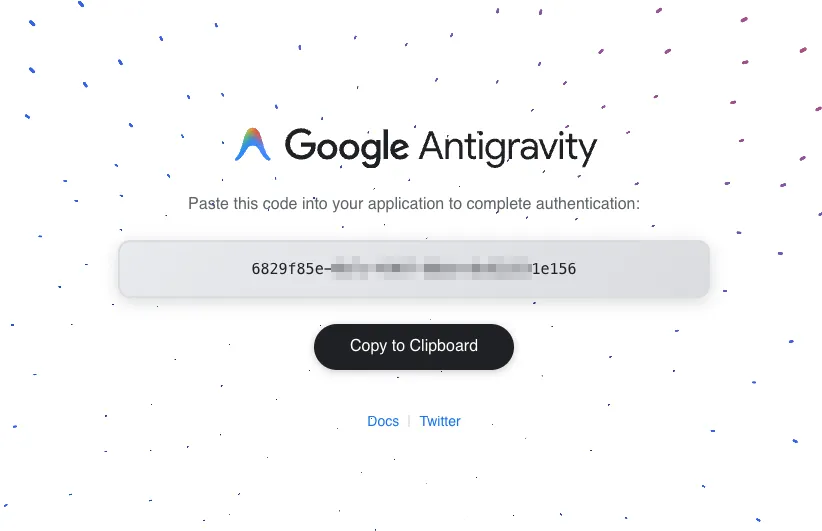
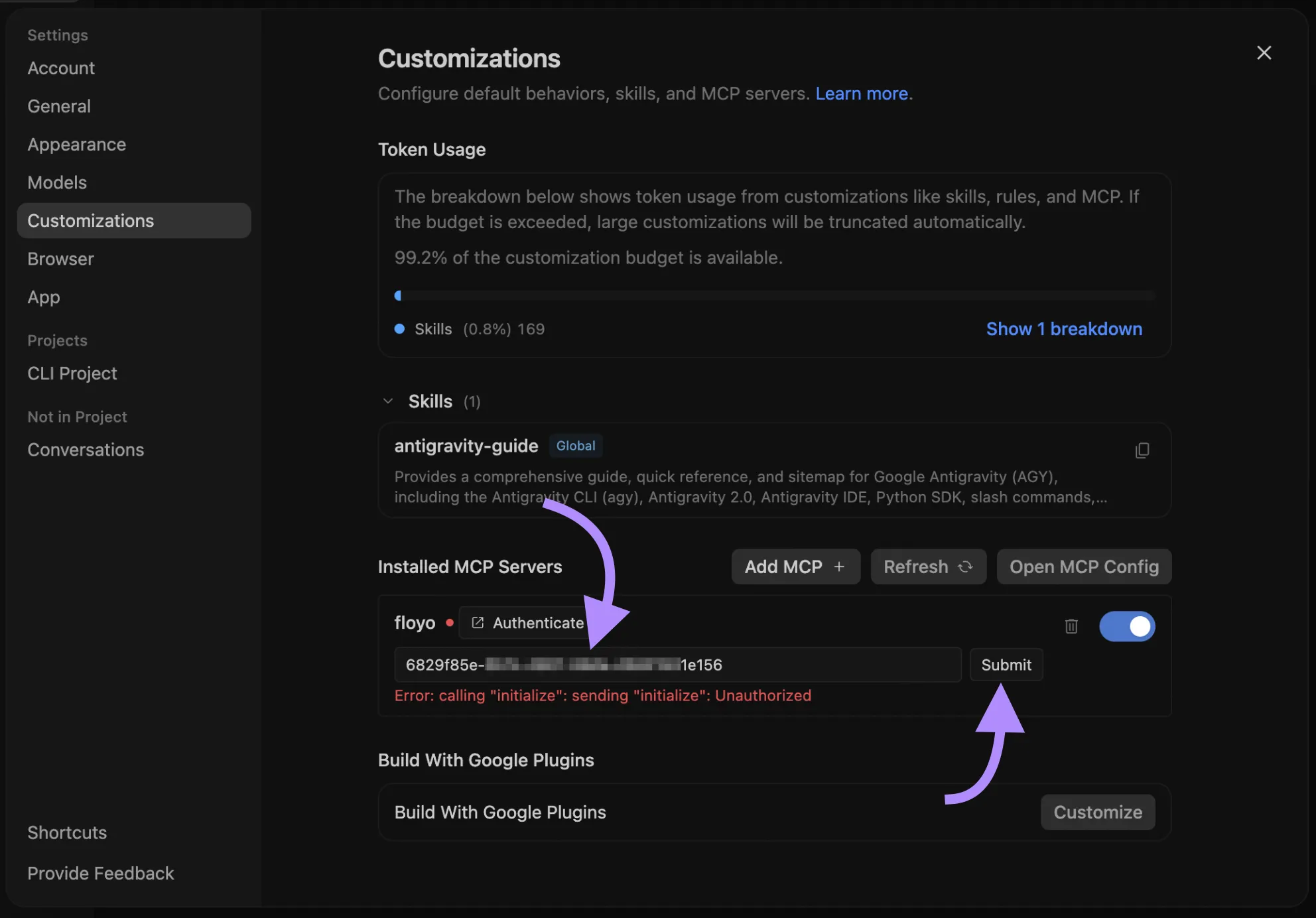
Authentication
Floyo MCP authenticates with Floyo OAuth. Your MCP client opens a browser consent flow; after you approve, the client stores tokens and refreshes them as needed.
We care about your API keys security. Floyo MCP does not need an API key at all. Floyo API keys are reserved for API-only usage. MCP authentication is OAuth-only, so your API keys are never pasted into agent configs and never shared with an AI agent or third-party MCP host. Sign in once in the browser; the agent works under your Floyo identity without ever holding a long-lived key.
What OAuth unlocks:
- The agent acts as you, the signed-in Floyo user.
- Your memberships, roles, and team-private assets follow that identity — see Work under a team context.
Work under a team context
Floyo MCP is built around Floyo Teams. After you sign in, you can work under any team you belong to — personal or shared — with the same OAuth session. Runs, files, uploads, and team workflow discovery stay inside the team you select.
You do not need to memorize team IDs. Talk to your agent in plain language:
What you want | Example prompt |
|---|---|
See every team you can use | List my teams |
Start (or lock) a team for the conversation | Work under [team name] context |
Change teams later | Switch to [team name] team |
The agent keeps the active team
AI agents are smart enough to remember the team context for the conversation. You do not need to restate which team to use before every prompt.
Once you say something like Work under Acme Studio context, later requests — discover workflows, run a job, list recent runs, upload a file — should execute under that team until you switch. If you are unsure which team is active, ask: Which team are we working under?
Switch anytime
Team context is not permanent. Change it whenever you need a different workspace:
- Switch to [team name] team
- Use my [team name] team for the next runs
After a switch, subsequent tool calls should use the new team. Assets and run history from the previous team stay isolated there.
Why team context matters on Floyo
Floyo MCP treats teams as a first-class security and collaboration boundary — not an afterthought:
- You stay you. OAuth maps to your Floyo user. The agent only sees teams you already belong to; it cannot invent access to someone else’s workspace.
- Hard isolation. Workflows, runs, uploads, and downloads for a team stay in that team’s private storage. Switching context changes which vault the tools talk to.
- Shared workspaces, individual consent. Invite collaborators on Floyo as usual. Each person connects MCP with their own OAuth login — no shared API keys in agent configs, and no key sprawl across laptops or CI secrets for chat agents.
- Roles follow Floyo. What you can list or run respects the same team membership you have in the Floyo app. Revoke a member in Floyo and their agent loses that team context on the next authorized call.
- Clear mental model. One signed-in user, many teams, one active context at a time. Ask List my teams, pick a name, and keep chatting.
Prefer browsing public community workflows? You can still ask the agent to discover public workflows. For anything that creates runs, uploads files, or reads team history, set an active team first.
Available Tools and Apps
You do not call MCP tools yourself. Your agent chooses tools from what you ask. Plain language is enough — for example, “list my teams,” “find an upscaler workflow,” or “run this on my active team.”
Typical flow:
- Set team context — List my teams, then Work under [team name] context.
- Discover a workflow (team-scoped, or public when browsing the community).
- Upload inputs when needed via the Upload widget.
- Run the workflow, then check status and outputs.
Tools
Tool | Description |
|---|---|
list_user_teams | Lists Floyo teams available to the signed-in user. Each id is the public team ID to pass as team_id elsewhere. |
get_team_balance | Retrieves the active team’s FloTime and Partner Nodes balance (plan allocation, flex FloTime, reserved/active usage, and USD Partner Nodes). |
discover_workflows | Searches and filters Floyo workflows (search, tags, sort, scope, verification, pagination, optional field expansion). |
list_team_runs | Lists workflow runs for a team, with filters, sorting, pagination, and optional expansions (outputs, costs, and more). |
run_workflow | Creates a Floyo run from Comfy API workflow JSON for the selected team. Prefer discovering a workflow with expand including prompt, then pass that prompt as workflow. |
retrieve_run | Retrieves a single run by ID for the active team, optionally with presigned output URLs or Partner Nodes cost details. |
list_files | Browses team storage (files and folders) for a path, with search, sort, size/date filters, and cursor pagination. |
retrieve_file | Retrieves file metadata for a team-owned file, optionally with a temporary presigned download URL. |
delete_file | Permanently deletes a file or folder by ID. Use recursive to delete a non-empty folder and its contents. |
prepare_file_upload | Opens the Floyo Upload widget and creates a short-lived upload session for the selected team. |
prepare_local_file_upload | Prepares a short-lived direct upload for CLI agents that can read a local file and execute HTTP requests. File bytes never pass through MCP — they go straight from the device to Floyo storage. |
complete_file_upload | Verifies and finalizes a successful direct CLI upload. Call it only after the file has reached Floyo storage. |
Deleting files is permanent. delete_file removes items from your team’s storage with no undo through Floyo. The tool instructs agents to confirm with you first, but that is not a guarantee — behavior depends on the model and your MCP client. If tool calls are auto-approved (or you said something like “clean up my uploads”), the agent may delete without asking again. Prefer clients that require approval for each tool call when cleaning storage, name the exact file or folder you want removed, and treat recursive folder deletes as a full wipe of that tree. Root folders such as inputs and outputs cannot be deleted.
Upload widget
Floyo MCP includes an interactive Upload MCP App for attaching images and other inputs to your team. In a single session you can upload up to 10 files, each no larger than 90 MB.
Limited widget support. The widget is currently supported only by ChatGPT and Claude Web/Desktop. CLI applications do not support interactive HTML widgets.
When your agent calls prepare_file_upload:
- Floyo creates a short-lived upload session for the chosen team_id.
- The Upload widget opens in your MCP client.
- You pick a file on your device.
- The file is uploaded directly from your device to Floyo’s CDN into your team’s private, secure storage.
We care about your files privacy and security. File bytes never travel through the MCP host, the language model, or third-party agent infrastructure. The widget redeems short-lived CDN credentials privately inside the app; those credentials are not shown to you or to the model. Only session metadata needed to complete the upload is exchanged with the agent tools.
After a successful upload, your agent can use the resulting file IDs with workflows and runs under the same team context.
Direct uploads from CLI agents
Claude Code, Codex, Cursor, and other agents with local files and HTTP access can upload without the widget — up to 5 GiB per file.
Your file never passes through MCP, the language model, or Floyo’s servers. Bytes go directly from your device to your team’s private Floyo storage. Nothing sits in between.
- The agent calls prepare_local_file_upload with the file’s name, type, and size only — never the contents.
- It uploads the file straight from your device to Floyo storage.
- After a successful transfer, it calls complete_file_upload so the file appears in the team.
We care about your files privacy and security. File bytes never travel through the MCP host, the language model, or any third-party agent infrastructure. They go only from your device into your team’s private, secure storage. The short-lived upload destination is a secret: agents must not print, share, or reuse it. If the transfer fails, they must not call complete_file_upload.