Create a Team Page
Overview
Team Pages let enterprise teams create private, curated landing pages within their Team Home. Use them to organize workflows, document processes, or build internal resource hubs that only your team members can access. They work just like Community Pages, but everything stays private to your team.
Accessing Team Pages
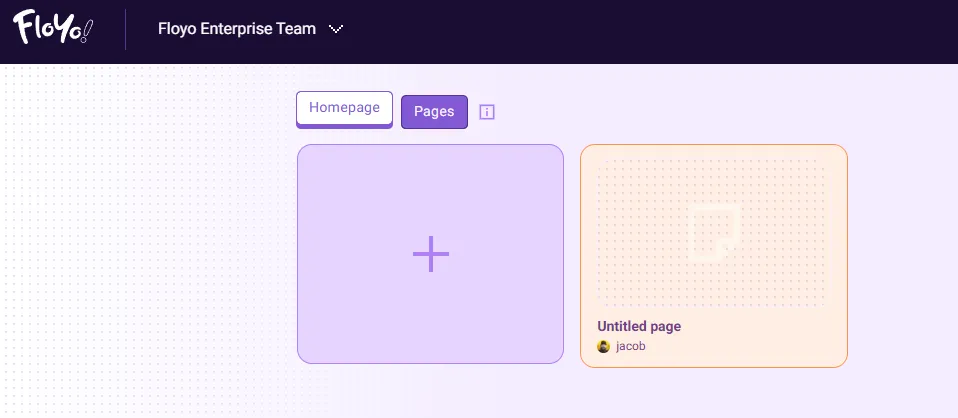
Viewing Existing Pages
- Open your Team Home from the top navigation bar
- Click the Pages tab (next to Homepage)
- Browse your team's existing pages
Creating a New Page
- Navigate to the Pages tab on your Team Home
- Click the + card to create a new page
- The page editor opens with a blank template labeled Team Page
Page Editor Overview
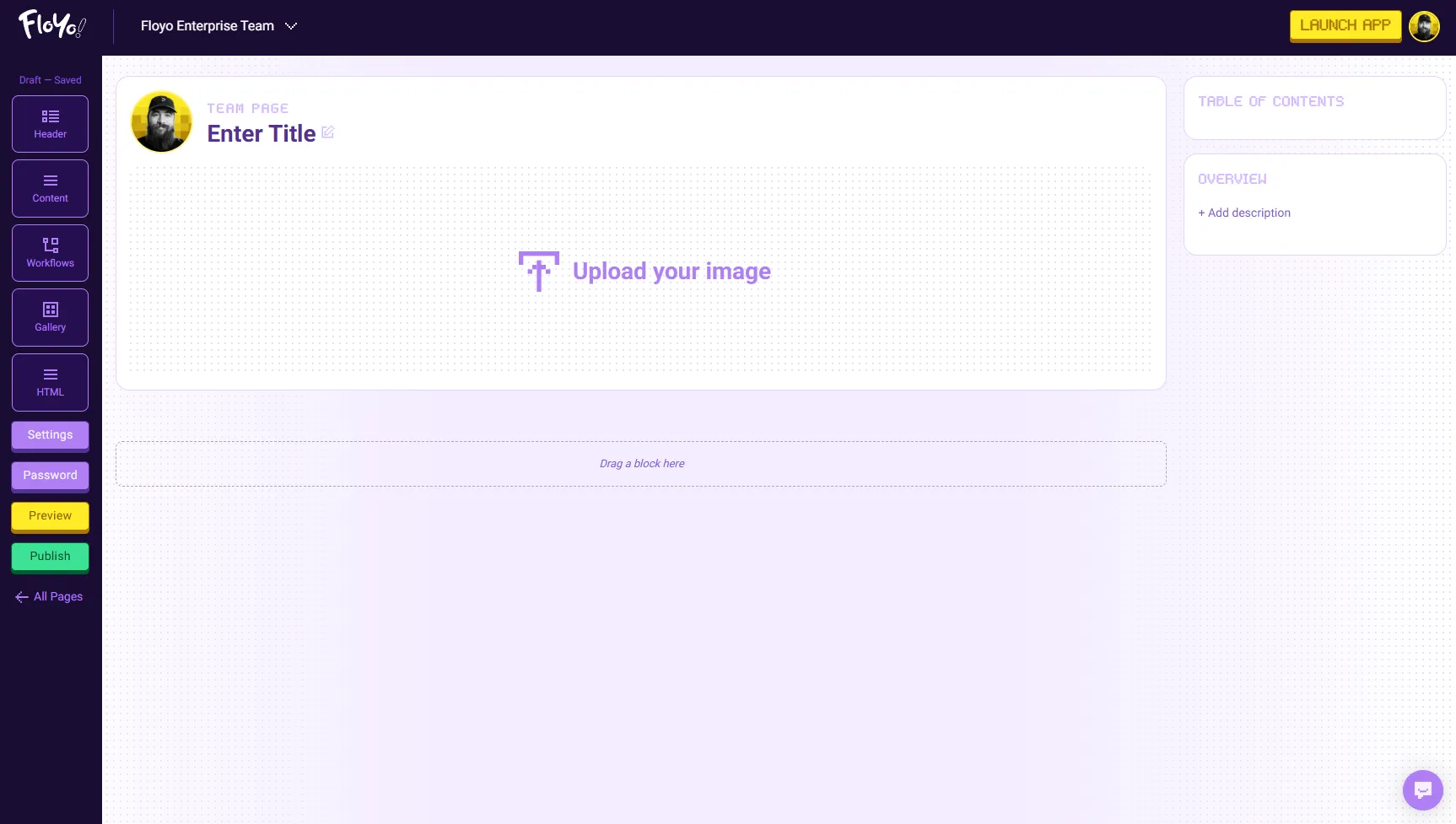
The editor uses a drag-and-drop block system to build your page, identical to the Community Pages editor.
Editor Layout
Area | Description |
|---|---|
Left Sidebar | Block types you can add to your page |
Main Canvas | Your page content — drag blocks here |
Right Sidebar | Table of Contents (auto-generated) and Overview section |
Bottom Left | Settings, Password, Preview, and Publish buttons |
Available Blocks
Block | Description |
|---|---|
Header | Add section headers to organize your page |
Content | Rich text content for descriptions and explanations |
Workflows | Embed workflow cards that team members can run directly |
Gallery | Display image galleries showcasing workflow outputs |
HTML | Add custom HTML for advanced formatting |
Creating Your Page
Step 1: Set Up Your Header
- Click on Enter Title to add your page title
- Click Upload your image to add a hero image
- In the right sidebar, click + Add description under Overview to describe your page
Step 2: Add Content Blocks
- Drag blocks from the left sidebar to the Drag a block here area
- Arrange blocks in the order you want them to appear
- Click on any block to edit its content
Step 3: Add Workflows
- Drag the Workflows block to your page
- Search and select workflows to feature
- Workflows display as interactive cards that team members can run
Step 4: Configure Settings
Click Settings in the bottom-left corner to configure:
- Industry Tags
- Use Case Tags
Step 5: Preview and Publish
- Click Preview to see how your page looks to team members
- When ready, click Publish to make your page visible to your team
- Your page appears under the Pages tab on your Team Home
Password Protection
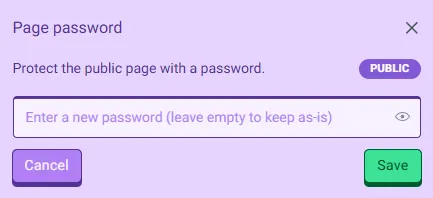
You can add an extra layer of access control by password-protecting a page:
- Click Password in the bottom-left corner
- Enable password protection
- Set your password
- Share the password with the intended team members
Tips & Best Practices
- Use descriptive titles: Help team members find pages quickly
- Add a compelling hero image: Make pages easy to identify at a glance
- Organize with headers: Break up content into scannable sections
- Curate thoughtfully: Quality over quantity — feature your most relevant workflows
- Write clear descriptions: Explain what the page covers and who it's for
Troubleshooting
My page isn't appearing under the Pages tab?
Solution: Ensure you've clicked Publish. Draft pages are only visible to the page creator until published.
Can I edit a published page?
Solution: Yes, navigate to your page and click edit. Changes save automatically, but major updates may require re-publishing.
Who can see my Team Pages?
Solution: Team Pages are private to your team. Only members of your enterprise team can view published pages. They are not visible in the public Community Pages directory.
How do I delete a page?
Solution: In the Team Pages tab, click on the trash icon, confirm to delete.