Floyo Agent
Use Floyo Agent to create production assets from chat. Describe what you want in plain language — the agent finds the right workflow on Floyo, runs it on Floyo GPUs, and saves outputs to your team's File Browser. No manual workflow hunting, no wiring nodes, no local GPU required.
Introduction
Floyo Agent is Floyo's built-in AI assistant for creative production. You chat, attach images when needed, and the agent handles workflow discovery, parameter setup, execution, and delivery.
Workflows run on Floyo infrastructure. The agent can use every public workflow on Floyo plus your team's private workflows — the same production pipelines your team already uses in the canvas.
Private beta
Floyo Agent is in private beta for select customers. If your team does not see Floyo Agent in Settings or the team menu, contact [email protected] to request access. Include your team name and a team Owner or Admin email.
Already use Claude, Cursor, or ChatGPT with Floyo? See Floyo MCP to connect an external agent to Floyo over the Model Context Protocol. Floyo Agent is Floyo's native chat experience — no MCP setup required.
Why Floyo Agent
Generic AI chat tools are good at conversation. Floyo Agent is built for running real production workflows on Floyo:
Capability | Floyo Agent | Chatting with Claude alone |
|---|---|---|
Workflow access | Public Floyo catalog + your team's private workflows + your team's favorites | No access to Floyo workflows |
Execution | Runs on Floyo GPUs with preloaded models and 2,500+ custom nodes | Cannot run Floyo production pipelines |
Outputs | Saved to your team's File Browser automatically | Files stay outside your Floyo workspace |
Team context | Shared favorites, base instructions, and file paths per team | No native Floyo team integration |
Setup | Open from the Floyo menu — no connectors or API keys | Requires separate tooling to reach Floyo |
In short: Claude can suggest ideas or generate generic content. Floyo Agent produces assets through your team's production workflows — the same ones you would run manually in the canvas, chosen and executed for you.
What you get out of the box
- Workflow intelligence — the agent searches public and team-private workflows and picks the best fit for your request.
- End-to-end runs — upload inputs, approve a plan when needed, track progress, and collect outputs in one conversation.
- Team defaults — admins set base instructions and default input/output folders so every member follows the same standards.
- Shared favorites — star go-to workflows and add notes so the agent prefers them when several options match.
- Session history — pick up where you left off; outputs stay linked to the conversation and your team's storage.
- Run history — see active and past workflow runs, stop a run you started, and jump back to the conversation.
![[Screenshot: Floyo Agent home screen — chat input, four suggestion cards, left sidebar with Sessions and Run History, and side panel with Outputs / Published Workflows tabs.]](https://images.archbee.com/1hT0XoAHMhU4co8ZZjygd/wIdR0YKDHUPEnr639GK78_image.png?format=webp "[Screenshot: Floyo Agent home screen — chat input, four suggestion cards, left sidebar with Sessions and Run History, and side panel with Outputs / Published Workflows tabs.]")
Use cases
When you open Floyo Agent, four starting suggestions mirror common creative tasks. Click one or type your own request.
Use case | Example prompt |
|---|---|
Generate Image | An image of a golden retriever running through a field of sunflowers at golden hour, cinematic lighting |
Animate | Turn my image into a cinematic slow-motion video with gentle camera movement |
Edit Photo | Edit this photo to remove the background and place the subject in a futuristic cyberpunk city |
Upscale | Upscale this image to 4K while enhancing details and sharpness |
You can also ask in plain language — for example, "Which workflow is best for product photos on a white background?" or "Run the same style as last time on this new reference image." Attach images directly in chat when a workflow needs an input.
Typical flow
- Open Floyo Agent for your team.
- Describe the asset you need (or click a suggestion).
- Review workflow options or an execution plan when the agent presents them.
- Wait for the run to finish on Floyo.
- Find outputs in the conversation and in your team's File Browser.
- Open Run History in the left sidebar to check in-progress runs, stop a run you started, or reopen the conversation that launched it.
![[Screenshot: Conversation showing a user prompt and finished output thumbnail. Optional: Run History panel with Now and History, My / Team tabs.]](https://images.archbee.com/1hT0XoAHMhU4co8ZZjygd/jLu9KJ5jpruIuJXbLrw93_image.png?format=webp "[Screenshot: Conversation showing a user prompt and finished output thumbnail. Optional: Run History panel with Now and History, My / Team tabs.]")
Floyo Agent vs Claude (and Floyo MCP)
vs Claude without Floyo
Claude is a general-purpose assistant. It does not know your team's private workflows, cannot execute production pipelines on Floyo, and does not write outputs into your team's Floyo storage.
Use Floyo Agent when you want finished creative assets from Floyo workflows, not just text or a one-off image from a closed model. Use Claude (or another chat tool) for writing, reasoning, or tasks that do not require Floyo production pipelines.
vs Claude (or Cursor) + Floyo MCP
Floyo MCP connects external agents to Floyo through MCP — useful when you already live in Claude Desktop, Cursor, Codex, or ChatGPT and want Floyo tools there.
Capability | Floyo Agent | Floyo MCP |
|---|---|---|
Best for | Creative teams using Floyo day to day | Developers and power users with an existing MCP client |
Setup | Enable in team Settings; open from Floyo menu | Per-client MCP config + OAuth |
Experience | Floyo-native chat, canvas, and workflow browser | Tool calls inside your chosen agent |
Workflow selection | Agent picks and runs workflows for you in conversation | You ask your agent to call Floyo tools step by step |
Upload UX | Attach files in chat | Upload widget (supported in select MCP clients) |
Team defaults | Base instructions, favorites, and file paths built in | Team context via conversation; no Floyo-native favorites |
When Floyo Agent is the better fit
- Your team lives in Floyo and wants a single chat surface for creative production.
- You want the agent to handle workflow discovery and execution without configuring MCP in each client.
- You rely on team favorites, base instructions, and shared file paths.
When Floyo MCP is the better fit
- You want Floyo inside Claude, Cursor, or another agent you already use.
- You need programmatic control over individual tool calls (discover, run, list files, check balance).
- You are building automations or prefer a bring-your-own-agent workflow.
You can use both: Floyo Agent for production work inside Floyo, Floyo MCP when you want Floyo inside another agent.
Who can use it
Floyo Agent is team-scoped, like the rest of Floyo:
- Floyo grants access to your team during beta.
- A team Owner or Admin enables the agent in Settings for everyone on the team.
- All team members can chat and run workflows once enabled.
- Runs, uploads, and outputs stay inside the active team's private storage.
If the agent is disabled for your team, members see Agent unavailable and are directed to ask an admin to enable it.
Get started
1. Request beta access
Email [email protected] with your team name and an Owner or Admin contact.
2. Enable Floyo Agent for your team
After Floyo enables your team, an Owner or Admin turns the agent on and configures optional defaults (base instructions, file paths) in Settings → Floyo Agent.
3. Open the agent and create
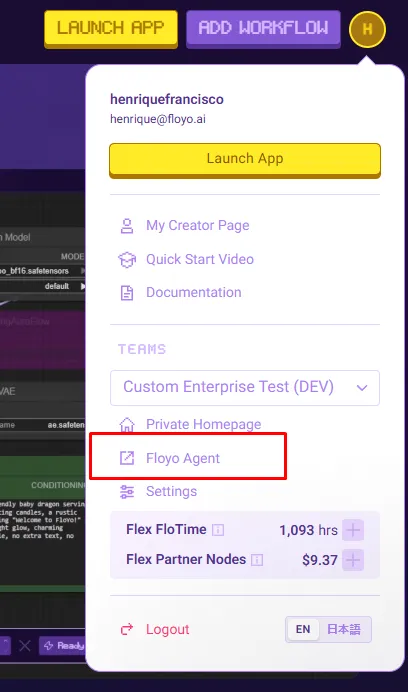
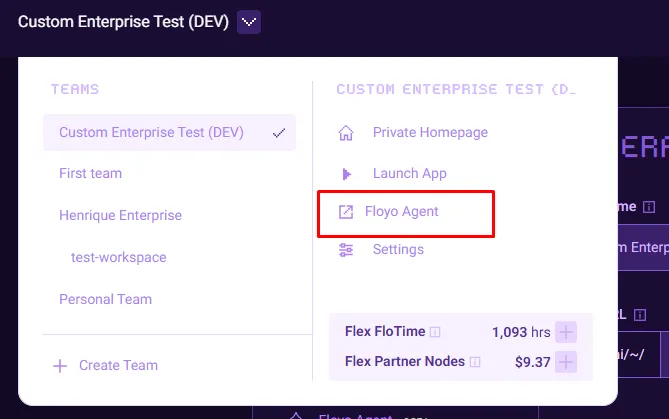
From the team menu or profile menu, select Floyo Agent. Pick a suggestion or describe what you need — the agent handles the rest.
Related documentation
- Floyo Agent Settings — enable the agent, base instructions, and file paths
- Floyo MCP — connect external AI agents to Floyo