Upload LoRA Models
Overview
Upload your own LoRA models directly to Floyo for use in your workflows. Your uploaded models are stored in your personal workspace and available across all your projects.
What You Can Upload
Currently, only LoRA models are supported for direct upload. Other model types require a request to the Floyo team.
Model Type | Direct Upload | How to Add |
|---|---|---|
LoRA | ✅ Yes | Follow steps below |
Checkpoints | ❌ No | |
VAE | ❌ No | |
Diffusion Models | ❌ No |
Uploading a LoRA Model
Step 1: Open the File Browser
- Navigate to the canvas (click LAUNCH APP)
- Click the folder icon in the left sidebar to open the File Browser
Step 2: Navigate to the LoRAs Folder
- Click models to open the models directory
- Click loras to open the LoRAs folder
Step 3: Upload Your File
- Click Upload a file (or drag and drop your file into the folder)
- Select your LoRA model file from your computer
- Wait for the upload to complete
Your LoRA model now appears in the loras folder, ready to use in your workflows.
Using Your Uploaded LoRA
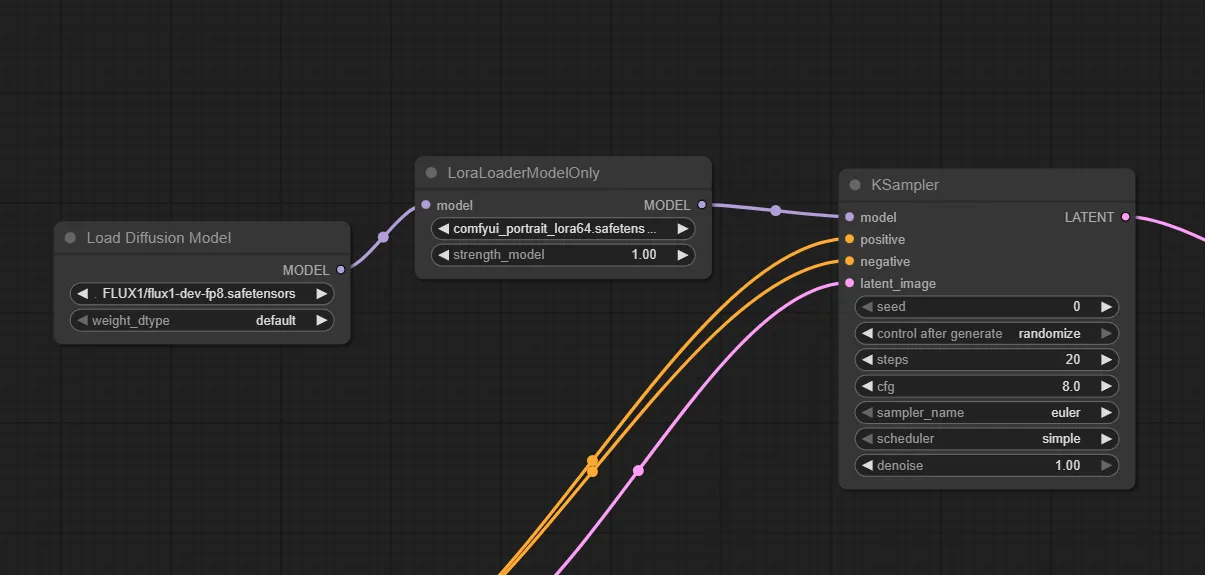
Once uploaded, your LoRA appears in any Load LoRA node's model selector.
- Add a Load LoRA node to your workflow
- Click the model dropdown
- Select your uploaded LoRA from the list
Tips & Best Practices
- Use descriptive filenames: Name your LoRA files clearly so they're easy to identify in the selector
- Check file size: Large LoRA files consume storage quickly
- Organize by project: Consider creating subfolders within the loras directory for different projects
Troubleshooting
LoRA doesn't appear in the node selector?
Solution: Try refreshing the canvas (press R) or re-opening the workflow. New uploads may take a moment to appear in node selectors.
Upload fails or times out?
Solution: Check your internet connection and file size. Very large files may take longer to upload. Ensure you have sufficient storage space on your plan.
Can I upload other model types?
Solution: Currently only LoRAs support direct upload. For checkpoints, VAE, or other models, use the Request Community Model Upload form.
Related Documentation
- Models