Members & Invitations
Overview
Manage team members and invite new users to your Floyo team.
Inviting additional members is available for Team plans only. See Pricing.
Accessing Members Settings
- Click your profile icon in the top-right corner
- Under TEAMS, select the team you want to manage
- Click Settings
- Select Members from the settings menu
The Members page displays two tabs:
Tab | Description |
|---|---|
Team Members | View current members with their email, role, and usage |
Pending Invitations | Monitor invites that haven't been accepted yet |
Inviting Members
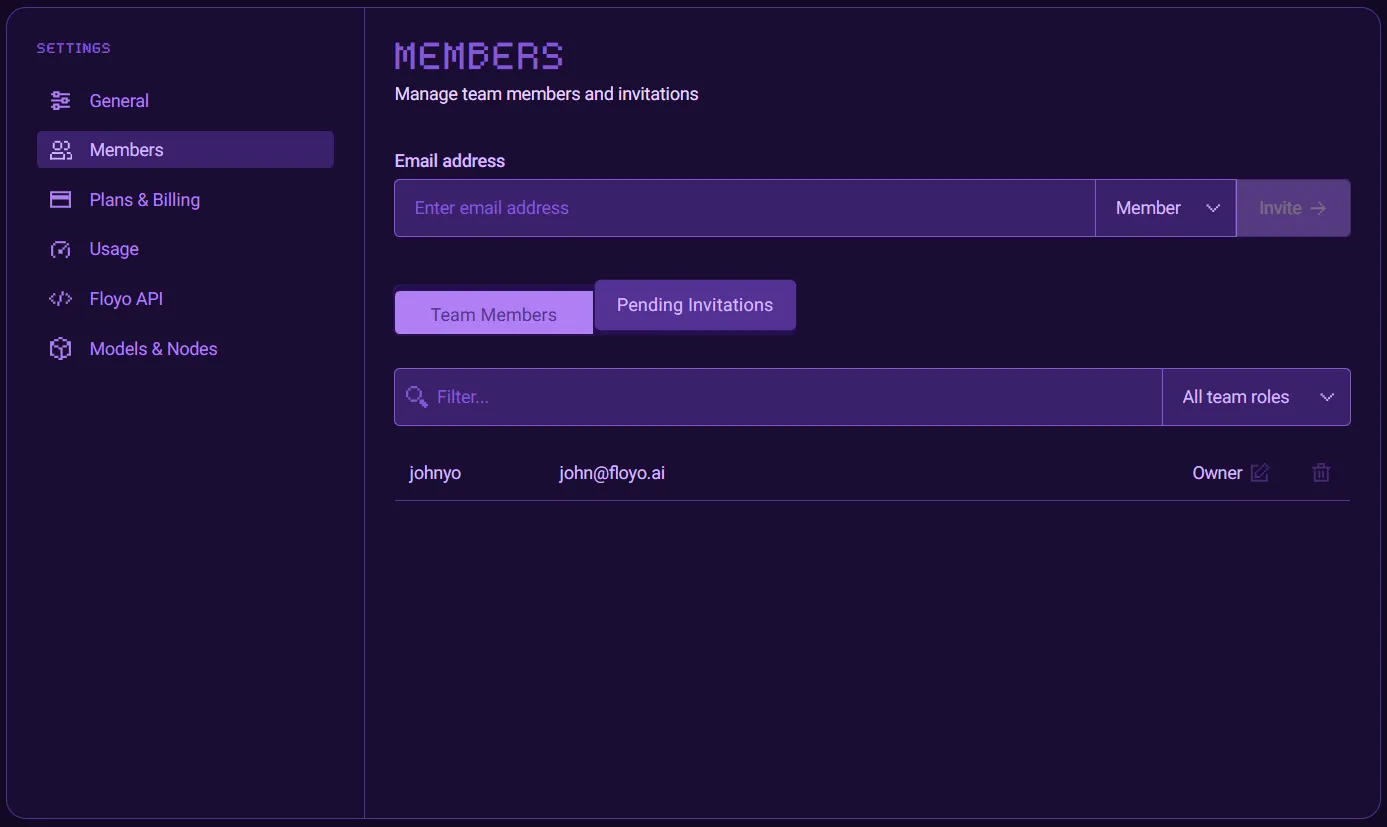
To invite a new team member:
- Enter the team member's email address
- Select their role from the dropdown:
- Member — Can use team workflows and resources
- Restricted Member — Same as Member access but cannot publish Workflows or Pipeline Pages to the team nor publish team Workflows on Community Pages.
- Admin — Can manage settings and invite other members but cannot manage Subscriptions nor billing information.
- Owner — Full team access.
- Click the Invite button
The invited user will receive an email with instructions to join your team.
Managing Pending Invitations
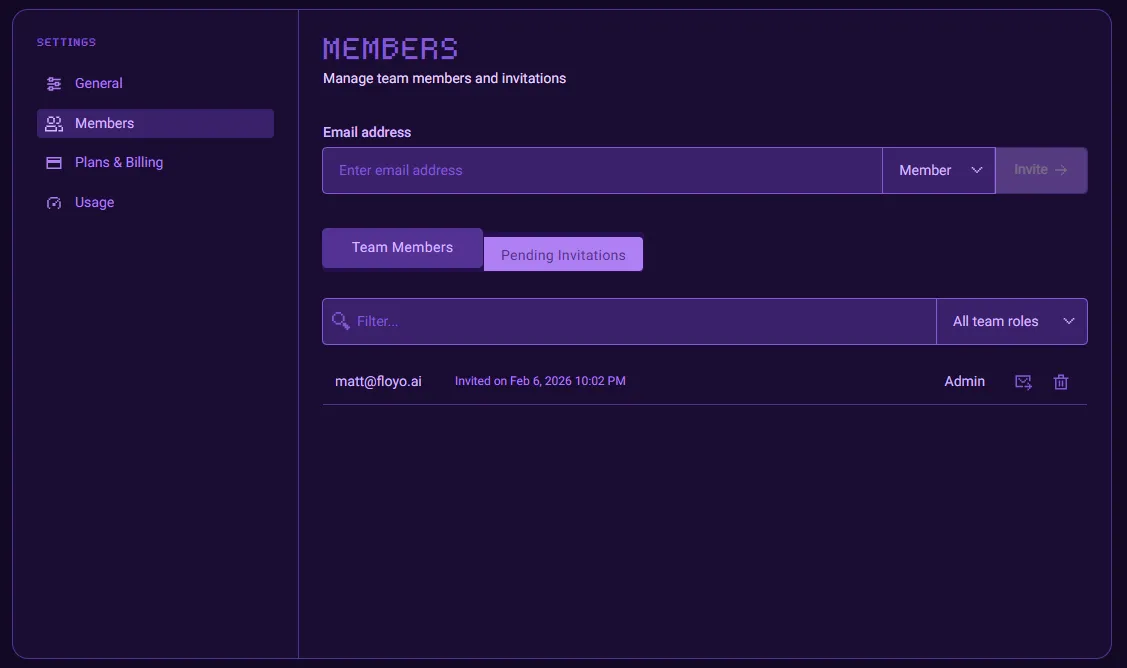
Click the Pending Invitations tab to view invites that haven't been accepted.
Action | Description |
|---|---|
Resend | Send the invitation email again |
Delete | Cancel the pending invitation |
Team Roles
Role | Permissions |
|---|---|
Owner | Full access including billing, can transfer ownership |
Admin | Access to settings, can invite and manage members |
Member | Can use team resources, no settings access |
For more information about specific roles and permissions, please see Team Member Roles and Access
Tips & Best Practices
- Start with Admin invites: Invite other admins first so they can help onboard team members
- Check pending invitations: Follow up with users who haven't accepted their invites
- Role assignments: Give Admin access only to users who need to manage team settings
Troubleshooting
Invitation email not received?
Solution: Ask the user to check their spam folder. You can also resend the invitation from the Pending Invitations tab.
Can't change a member's role?
Solution: Only Owners and Admins can modify member roles. Contact your team Owner if you need elevated permissions.
Related Documentation
- Usage