General Settings
7 min
Overview
Configure your team's display name and URL identifier.
Accessing General Settings
- Click your profile icon in the top-right corner
- Under TEAMS, select the team you want to manage
- Click Settings
- Select General from the settings menu
Settings
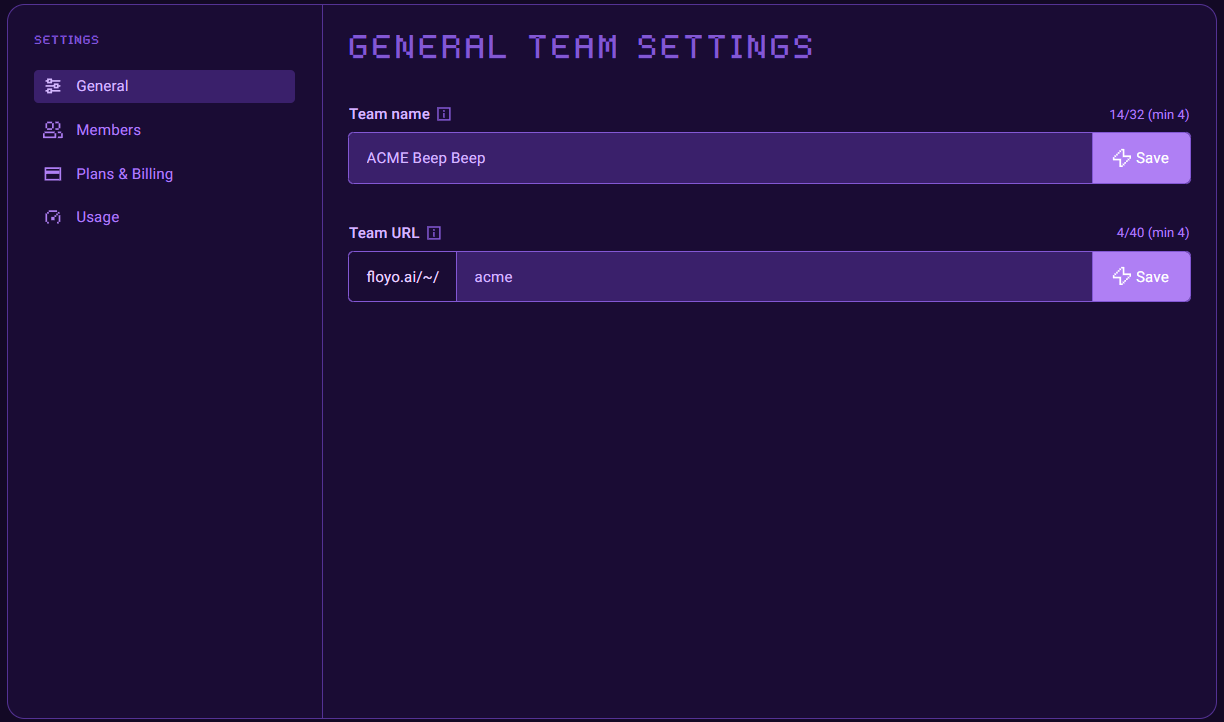
Team Name
Enter the team name that will be visible to all team members. For example, your company or department name.
Field | Requirement |
|---|---|
Minimum length | 4 characters |
Maximum length | 32 characters |
To update your team name:
- Enter the new name in the Team name field
- Click Save
Team URL
Your unique team URL identifier or handle. This appears in your team's Floyo URL.
Field | Requirement |
|---|---|
Minimum length | 4 characters |
Maximum length | 40 characters |
To update your team URL:
- Enter the new URL in the Team URL field
- Click Save
Your team URL will be: floyo.ai/~[your-team-url]
Tips & Best Practices
- Keep team names clear: Use recognizable names so members can easily identify the correct team
- URL considerations: Choose a URL that's easy to remember and share
Related Documentation
- Usage