Run History & Queue
Overview
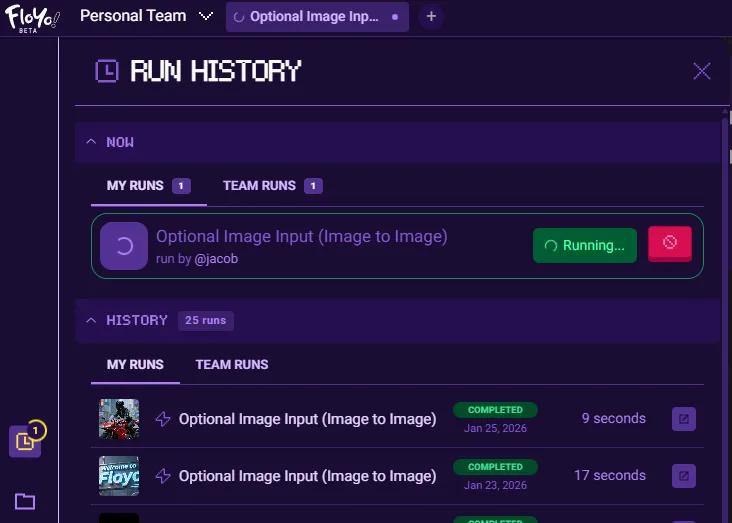
Track your workflow executions and manage your queue from the Run History panel. View currently running workflows, browse past runs, and quickly reuse previous outputs.
Accessing Run History
- Open the canvas (click LAUNCH APP)
- Click the clock icon in the left sidebar (first icon)
- The Run History panel opens
Click the icon again to close the panel.
Panel Overview
The Run History panel is divided into two main sections:
Section | Description |
|---|---|
NOW | Workflows currently running or queued |
HISTORY | Completed, cancelled, and failed runs |
NOW Section
The NOW section shows workflows that are actively running or waiting in the queue. Each queued or running workflow displays here with its current status.
When no workflows are running, you'll see: "You have no running workflows."
HISTORY Section
The HISTORY section displays all your past workflow runs with two tabs:
Tab | Description |
|---|---|
MY RUNS | Your personal run history |
TEAM RUNS | Runs from other team members |
Run Information
Each run displays:
Element | Description |
|---|---|
Thumbnail | Preview image of the output |
Workflow Name | Name of the workflow that was run |
Status Badge | Current status (see below) |
Date | When the run was executed |
Duration | How long the run took |
Status Badges
Status | Color | Meaning |
|---|---|---|
COMPLETED | Green | Workflow finished successfully |
CANCELLED | Orange | Run was manually stopped |
FAILED | Red | An error occurred during execution |
Using Run History
Reusing Previous Outputs
You can drag any thumbnail from the Run History panel directly onto the canvas to reuse that workflow.
- Find the run with the output you want
- Click and drag the thumbnail
- Drop it onto your canvas
Viewing Error Details
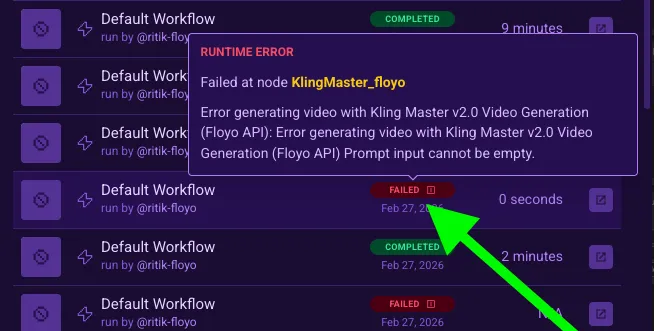
When a workflow fails, you can see what went wrong by hovering over the FAILED badge. A tooltip will appear with details about the failure.
Error Types
Type | When It Occurs | What You'll See |
|---|---|---|
System Error | Internal platform issue | A generic message indicating the team is looking into it |
Validation Error | Before the workflow runs | Details about what failed validation, such as missing outputs, invalid node parameters, or missing input/output values |
Runtime Error | During workflow execution | The specific node that failed and a message explaining the cause |
Queue Management
The queue counter in the bottom toolbar shows how many items are waiting to run.
Element | Description |
|---|---|
Queue Counter | Number displayed next to the play button |
X Button | Cancel current run or clear the queue |
Tips & Best Practices
- Check TEAM RUNS: See what workflows your teammates are running for inspiration
- Reuse outputs: Drag thumbnails to quickly iterate on previous results
- Monitor queue: Keep an eye on queue count to manage your workflow batches
Troubleshooting
Run shows FAILED status?
Solution: Check the workflow for missing models, invalid connections, or node errors. Try running again after fixing any issues.
Can't see team runs?
Solution: Ensure you're on a team plan and have selected the correct team in the team selector.