Saving Workflows
13 min
Overview
Keep your workflows organized and accessible by saving them to your Floyo cloud storage. Your saved workflows are available from any device, anytime.
Saving to Cloud Storage
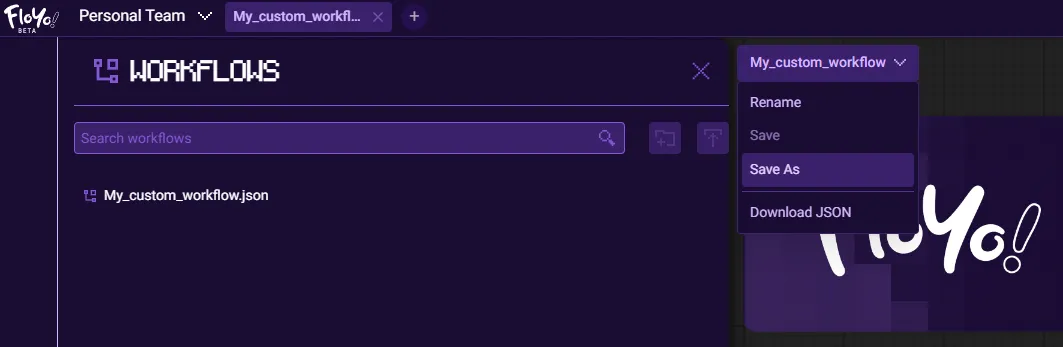
Steps
- Click Workflow in the top bar
- Select Save or Save As
- Enter a name for your workflow (if using Save As)
- Click Save
Your workflow is now accessible from the Workflows tab in your left toolbar.
Accessing Saved Workflows
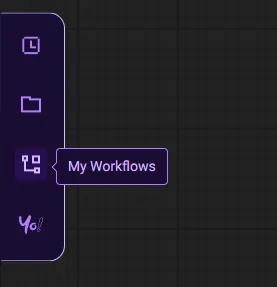
- Click the Workflows icon in the left sidebar
- Use the search bar to find workflows by name
- Click any workflow to open it in a new tab
Save Options
Option | Description |
|---|---|
Save | Overwrites the current version |
Save As | Creates a new copy with a different name |
💡 Tip: Use "Save As" when you want to keep the original and create a variation.
Workflow Metadata in Images
Every image you generate has the full workflow embedded in its metadata. This means:
- Drag any Floyo-generated image onto the canvas
- The workflow that created it loads automatically
- No need to remember settings or save separately
💡 Tip: This is a great way to share workflows — just share the output image!
Tips & Best Practices
- Save frequently: Don't lose work — save after significant changes
- Use descriptive names: Makes workflows easier to find later
- Create versions: Use "Save As" to keep iterations of your workflow
Troubleshooting
Can't find my saved workflow?
Solution: Check the Workflows panel in the left sidebar and use the search bar. Ensure you saved it to the correct team account.
Save button not working?
Solution: Check your internet connection. Try refreshing the page and saving again.
Workflow disappeared after browser closed?
Solution: Workflows must be explicitly saved.