My Creator Page
Overview
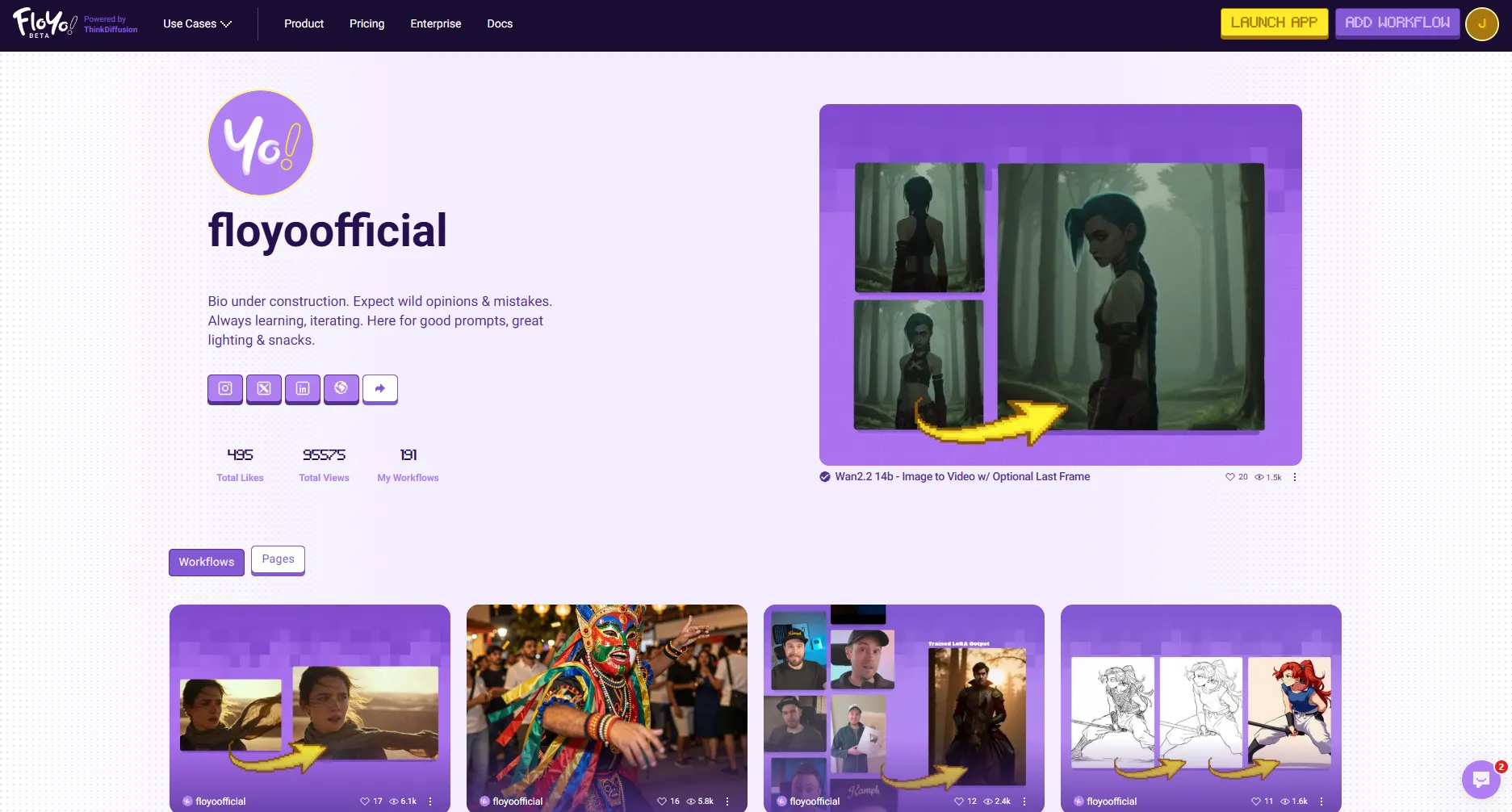
Your Creator Page is your public profile on Floyo where other users can discover you and your published workflows. It showcases your bio, social links, and all the workflows you've shared with the community.
Accessing My Creator Page
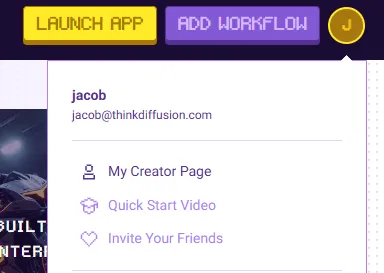
- Click your profile icon in the top-right corner of any Floyo page
- Select My Creator Page from the dropdown menu
Your Creator Page will open at floyo.ai/creators/[your-username].
Overview
Page Elements
Element | Description |
|---|---|
Profile Avatar | Your profile image, displayed as a circular icon with your initial by default |
Display Name | Your public username shown on your Creator Page |
Bio | A short description about yourself (visible to all visitors) |
Social Links | Links to your external profiles (Twitter, Instagram, YouTube, etc.) |
Badges | Shows earned badges |
Stats | Shows your Total Likes, Total Views, and My Workflows count |
Featured Area | Displays your published workflows or featured content |
Editing Your Profile
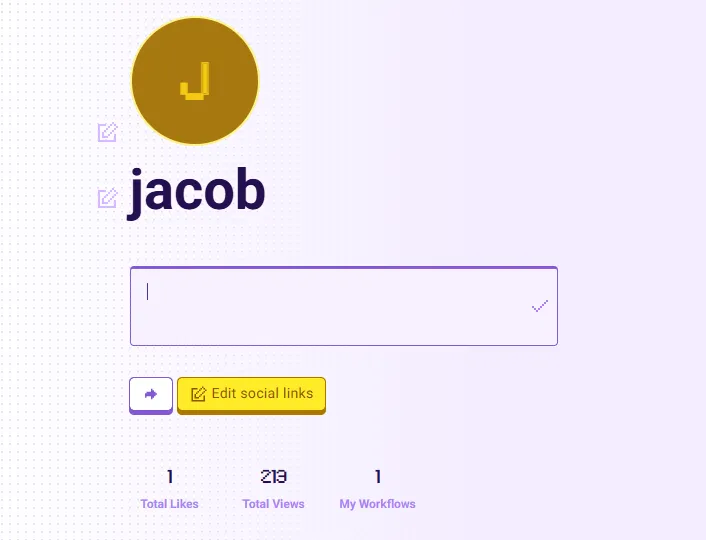
Each profile element has an edit icon (pencil) that appears next to it. Click the icon to edit that element inline.
Edit Profile Avatar
- Click the edit icon below your avatar
- Select an image file from your computer
- Your new avatar uploads automatically
Edit Display Name
- Click the edit icon next to your display name
- Enter your new name in the text field
- Click outside the field or press Enter to save
Edit Bio
- Click the edit icon next to your bio text
- Enter your bio in the text area that appears
- Click outside the field to save your changes
Social Links
Social links let you connect your Floyo profile to your other online presences.
Adding Social Links
- Click Edit social links on your Creator Page
- In the dialog that appears, click the + button
- Enter the full URL (including https://) for your social profile
- Click Confirm changes to save
Removing Social Links
- Click Edit social links
- Click the trash icon next to the link you want to remove
- Click Confirm changes to save
Stats Section
Your Creator Page displays three key metrics:
Stat | Description |
|---|---|
Total Likes | Combined likes across all your published workflows |
Total Views | Total number of views your workflows have received |
My Workflows | Number of workflows you've published to the community |
Workflows & Pages Tabs
At the bottom of your Creator Page, two tabs organize your content:
Tab | Description |
|---|---|
Workflows | Displays all workflows you've published to the community |
Pages | Shows any custom pages you've created |
Tips & Best Practices
- Complete your profile: Profiles with avatars, bios, and social links get more engagement
- Add social links: Help visitors find you on other platforms
- Publish quality workflows: Your best work showcases your skills to the community
- Update regularly: Keep your bio current as your focus evolves
Troubleshooting
My avatar won't upload?
Solution: Ensure your image is a supported format (JPG, PNG) and under 5MB in size.
My changes aren't saving?
Solution: Click outside the text field after editing to trigger the save. If issues persist, refresh the page and try again.
My stats show zero?
Solution: Stats only count published workflows. Make sure you've published at least one workflow to the community.