Workspaces
Overview
Workspaces act as isolated sub-Teams — each with its own members, files, and usage. Use them to separate projects or clients without spinning up separate accounts. The parent Team organization admins can allocate FloTime and Partner Nodes credits and can lock the Workspace models and nodes configuration to the parent Team's configuration.
This feature is only available for Team and Enterprise customers.
Accessing Workspaces
- Click your profile icon in the top-right corner
- Under TEAMS, select the team you want to manage
- Click Settings
- Select Workspaces from the settings menu
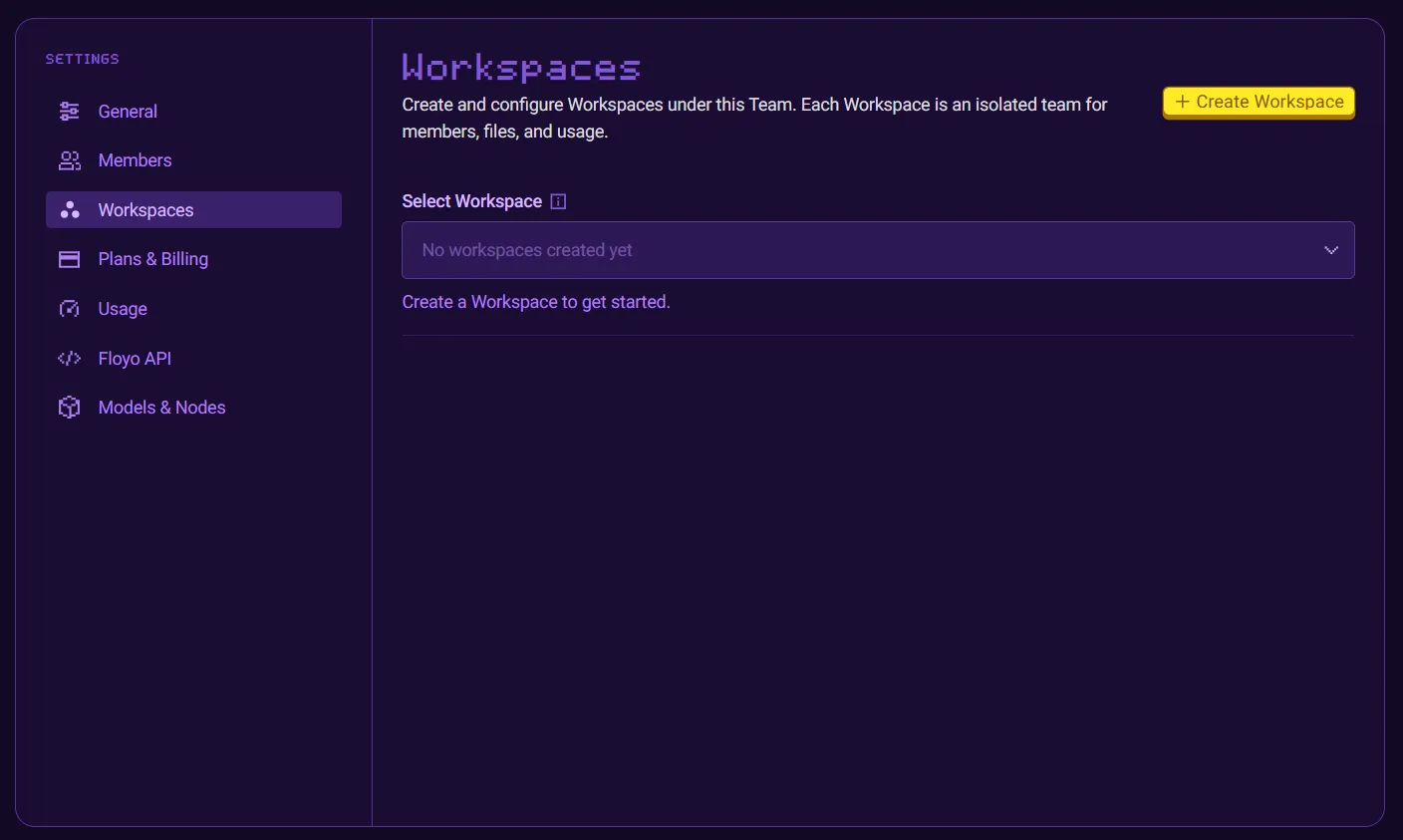
Create a Workspace
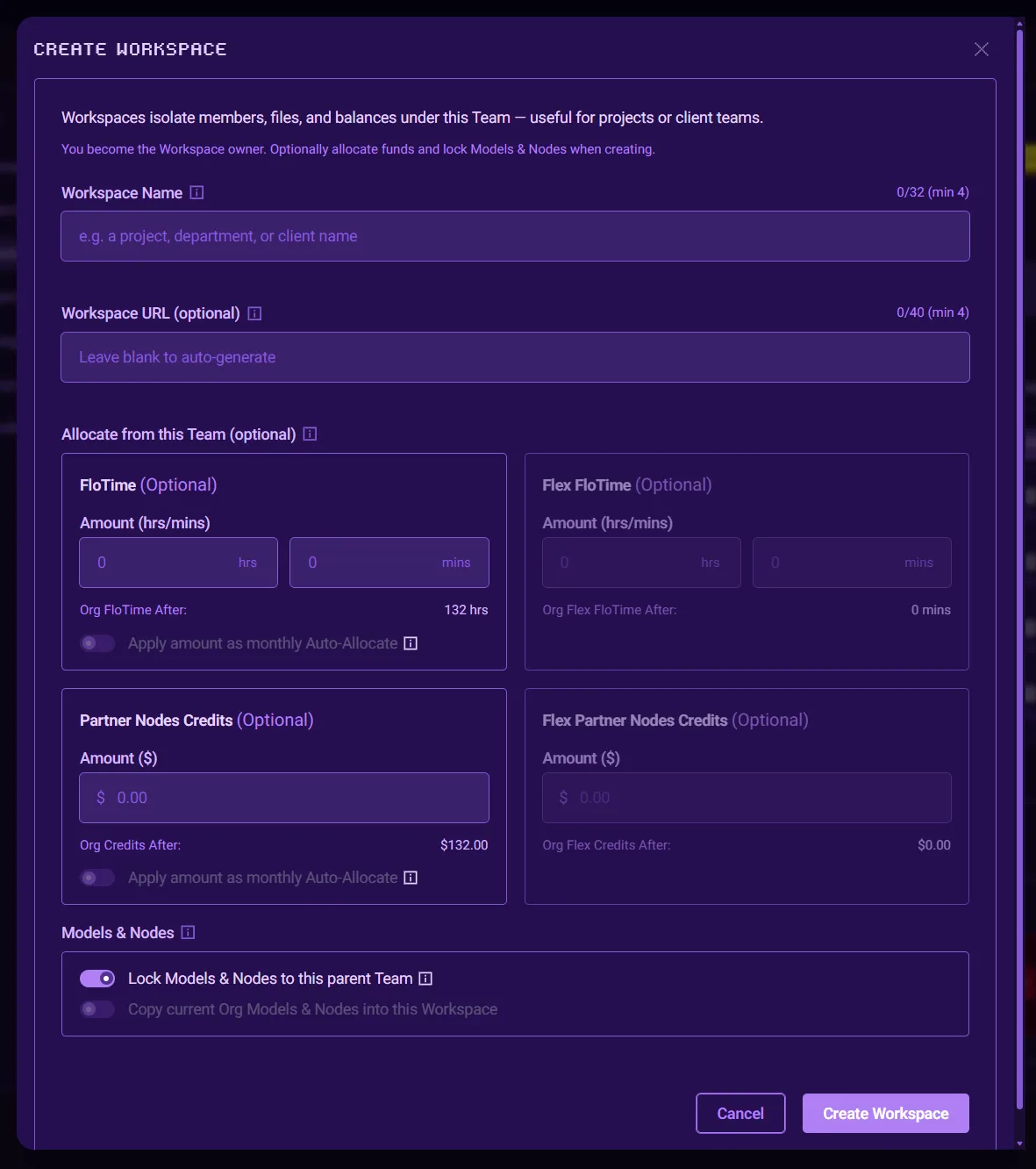
Click the Create Workspace button to create a new Workspace under the Team
- Enter the Workspace name
- Optionally enter the Workspace URL slug (or leave blank for the system to auto-generate the slug).
- Optionally allocate the initial FloTime and Partner Nodes Credits from the parent Team's balance.
- For FloTime and Partner Node Credits, you can select to have the amount you set to be applied automatically upon each month's renewal. See Manage Auto-AllocateManage Auto-Allocate below.
- Lock the Workspace Models & Nodes rules to the parent Team's rules.
- If you opt not to lock to the parent Team, you may choose to copy parent Team's current models and nodes rules down to the Workspace.
Upon successful creation, you can immediately navigate to the Workspace to invite members to it.
If 3rd-Party API Keys have been enabled for your Team, it will be enabled for Workspaces under the Team as well.
Manage Auto-Allocate
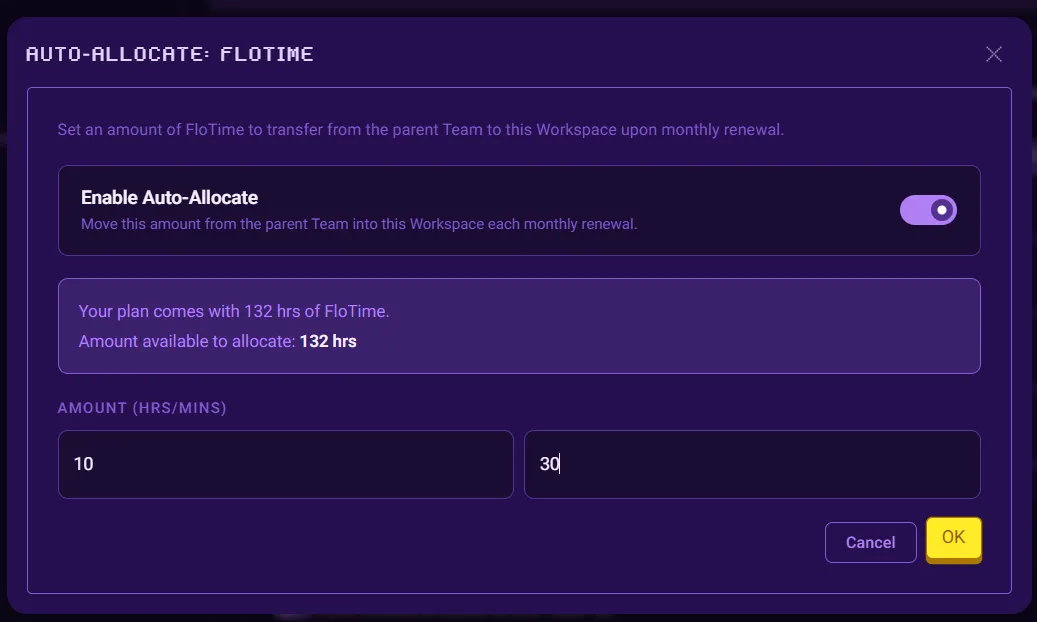
Because FloTime and Partner Nodes Credits resets each month, Workspaces will by default be set 0 each month. You can choose an amount of FloTime and/or Partner Node Credits to automatically get allocated from the parent Team account's new monthly balance.
- Click on Manage in the FloTime or Partner Nodes Credit section you wish to configure the Auto-Allocate amount.
- Choose to turn on or off Auto-Allocate
- If you choose to turn on, enter the amount you wish to have automatically transferred from the parent Team to the Workspace upon monthly renewal.
- Click OK to apply.
Add/Deduct FloTime and Partner Nodes Credits
A Workspace's FloTime and Partner Nodes Credits are managed from the parent Team account. Members of the Workspace itself cannot add FloTime nor Partner Nodes Credits.
To adjust a Workspaces FloTime and/or Parnter Nodes Credits
- Go to the parent Team's Settings > Workspaces
- Select the Workspace you wish to modify
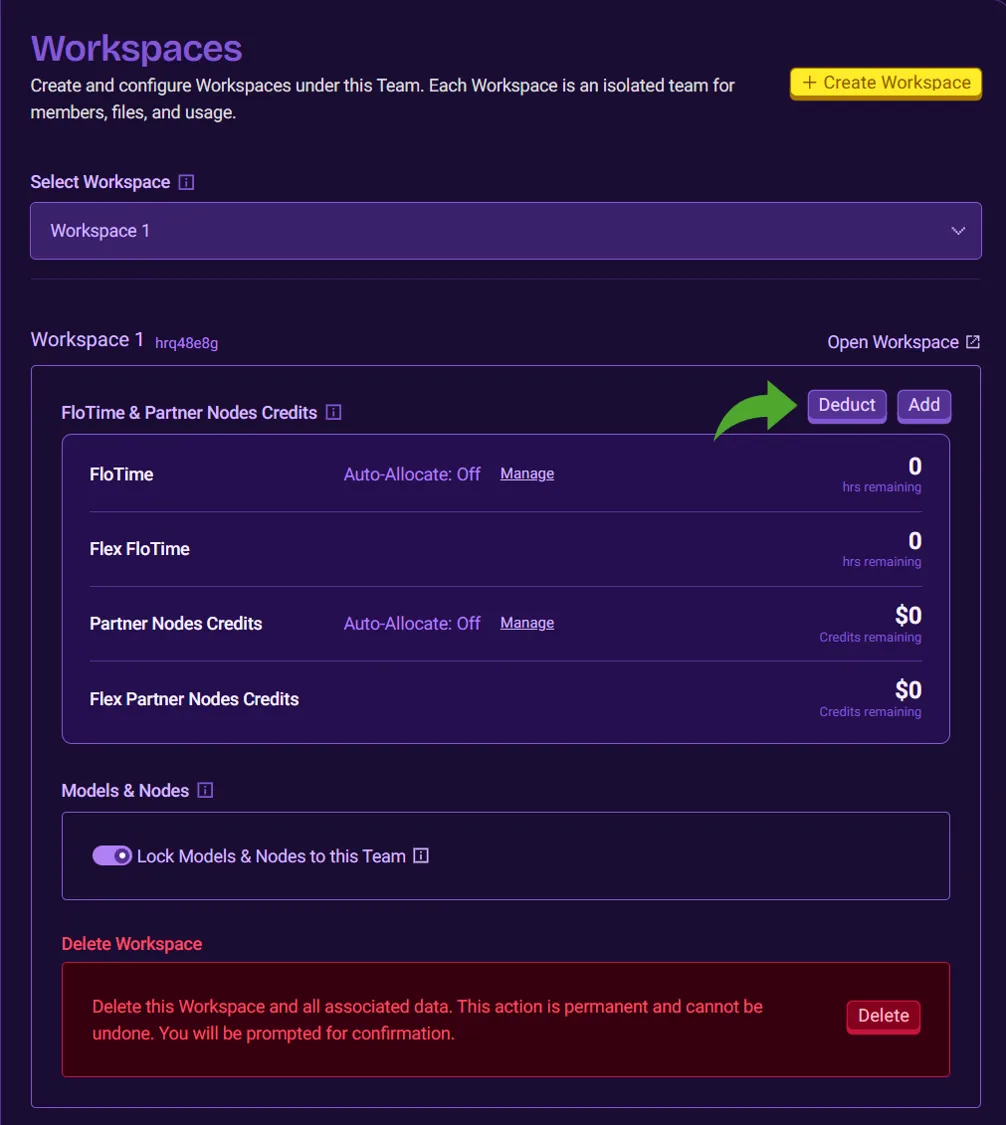
- Under the FloTime and Partner Nodes Credits
- Click on Add to add credits
- Click on Deduct to remove credits
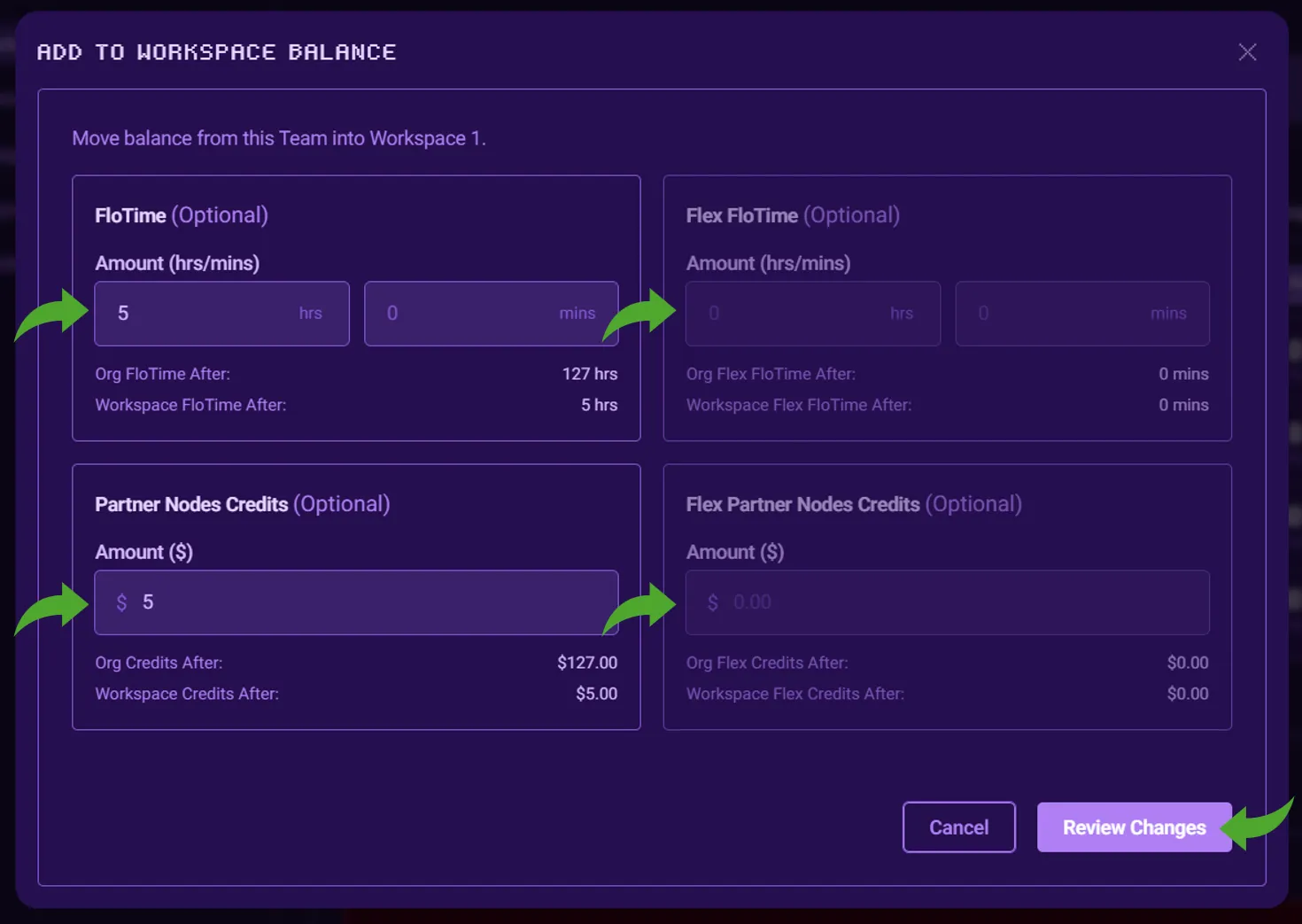
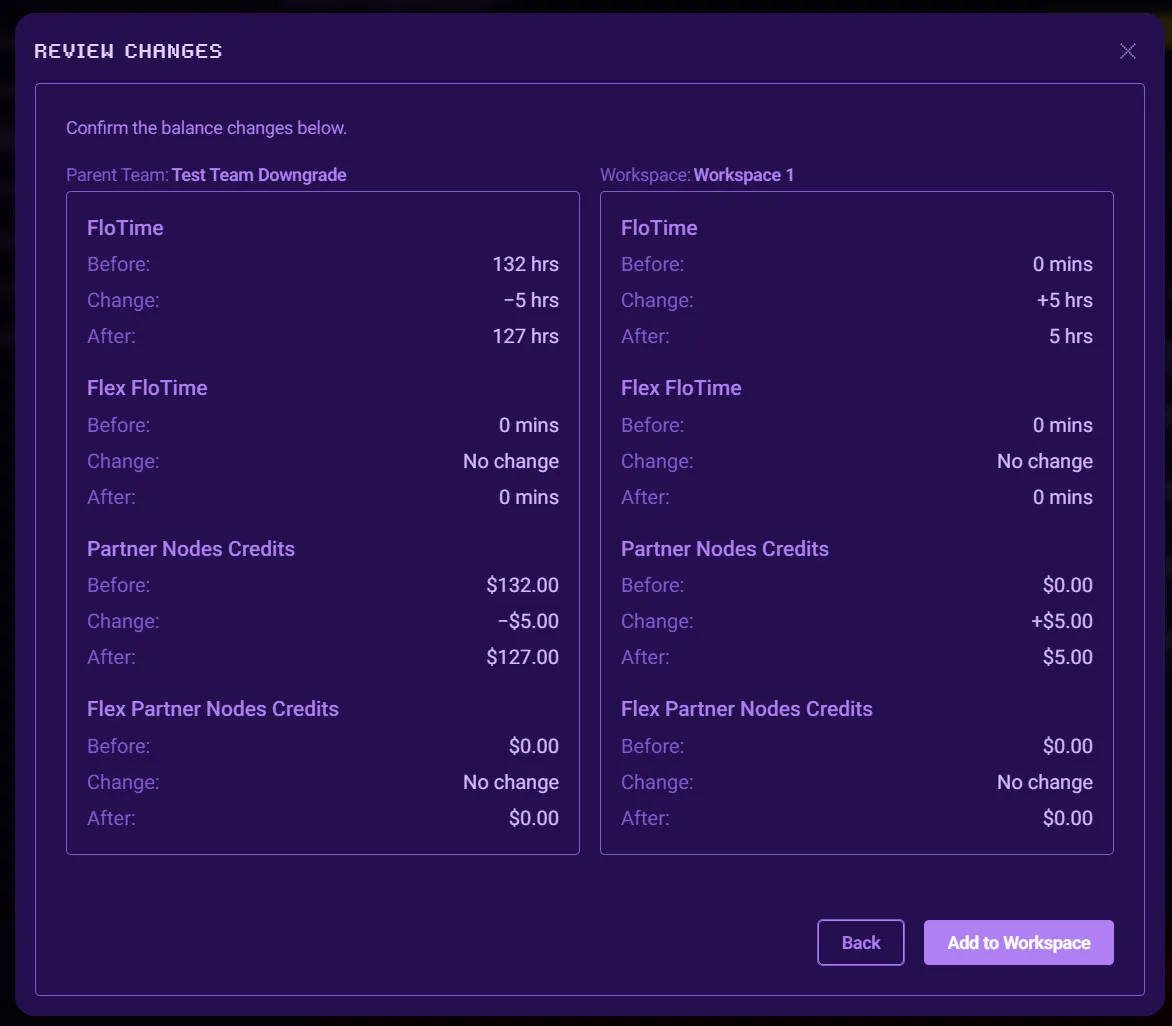
- Enter the amount of FloTime and/or Parnter Nodes Credits you wish to add or deduct and click the Review Changes button to see the before and after balances before applying. If all looks good, you can apply your changes.
Lock/Unlock Models & Nodes Rules
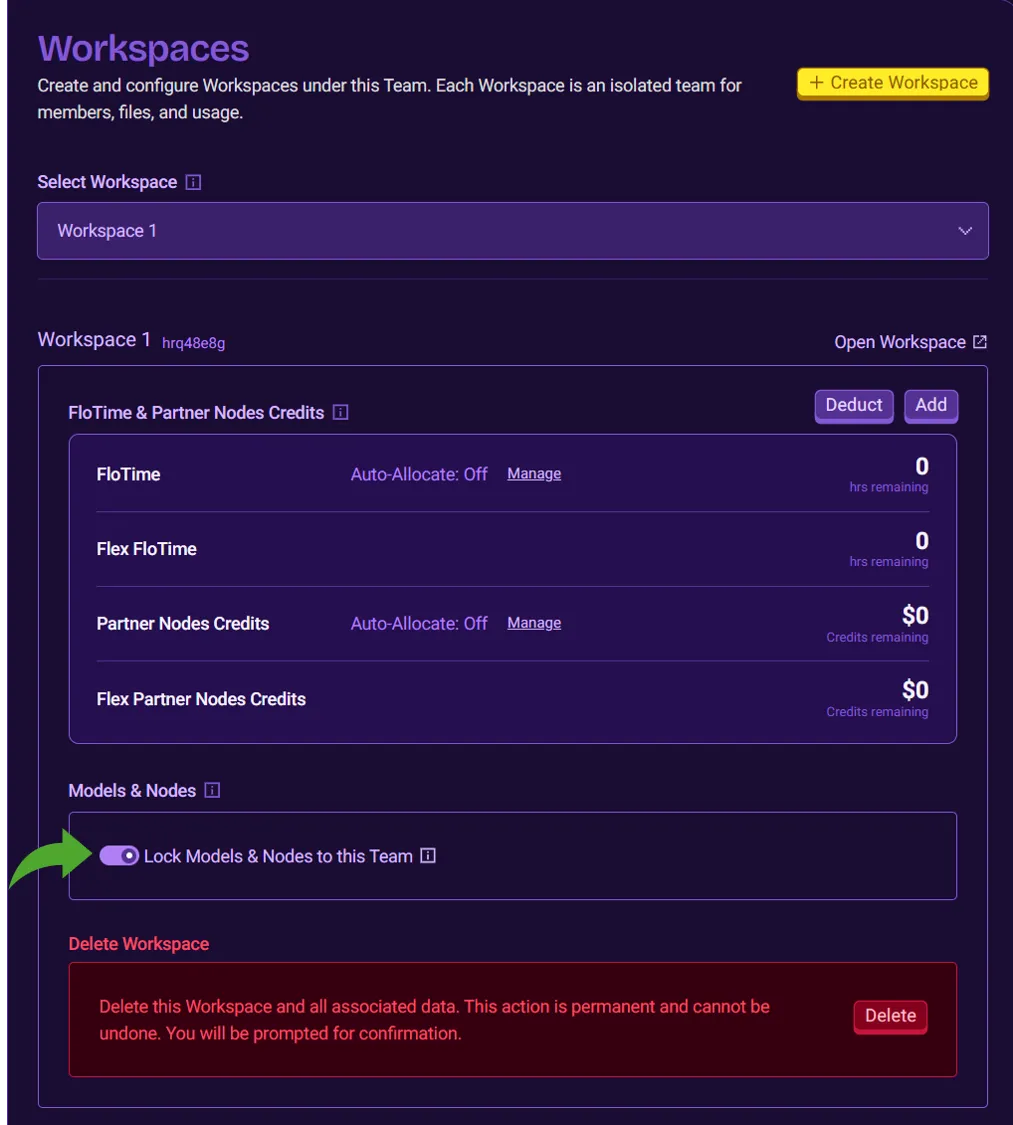
You can configure the Workspace's Models & Nodes rules to be locked to the parent Team's configuration.
- Go to the parent Team's Settings > Workspaces
- Select the Workspace you wish to modify
- Under Models & Nodes section, toggle the Lock Modes & Nodes to this Team
Accessing a Workspace
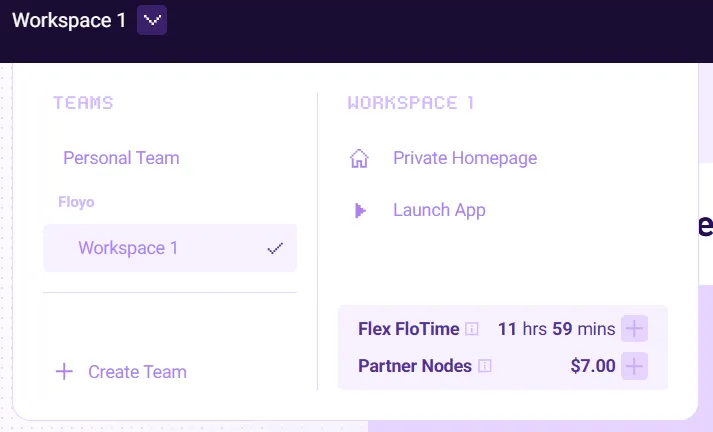
Members of a Workspace access them as they would any other Team to which they have access by selecting the Workspace (sub-Team) from the Team Menu dropdown or User Profile drawer. Workspaces will be grouped under the parent Team account.
Team member role access for Workspaces work as it does any other Team. Only Owners and Admins can access the workspace's Settings.