Manage Models & Nodes
Overview
Manage which models and custom nodes your team can use with Settings > Models and Nodes. This includes blocking open open-source models, closed-source models available via Floyo Partner Nodes, and any installed custom node.
Available for Team plans only. See Pricing.
Accessing Models Settings
- Click your profile icon in the top-right corner
- Under TEAMS, select the team you want to manage
- Click Settings
- Select Models and Nodes from the settings menu
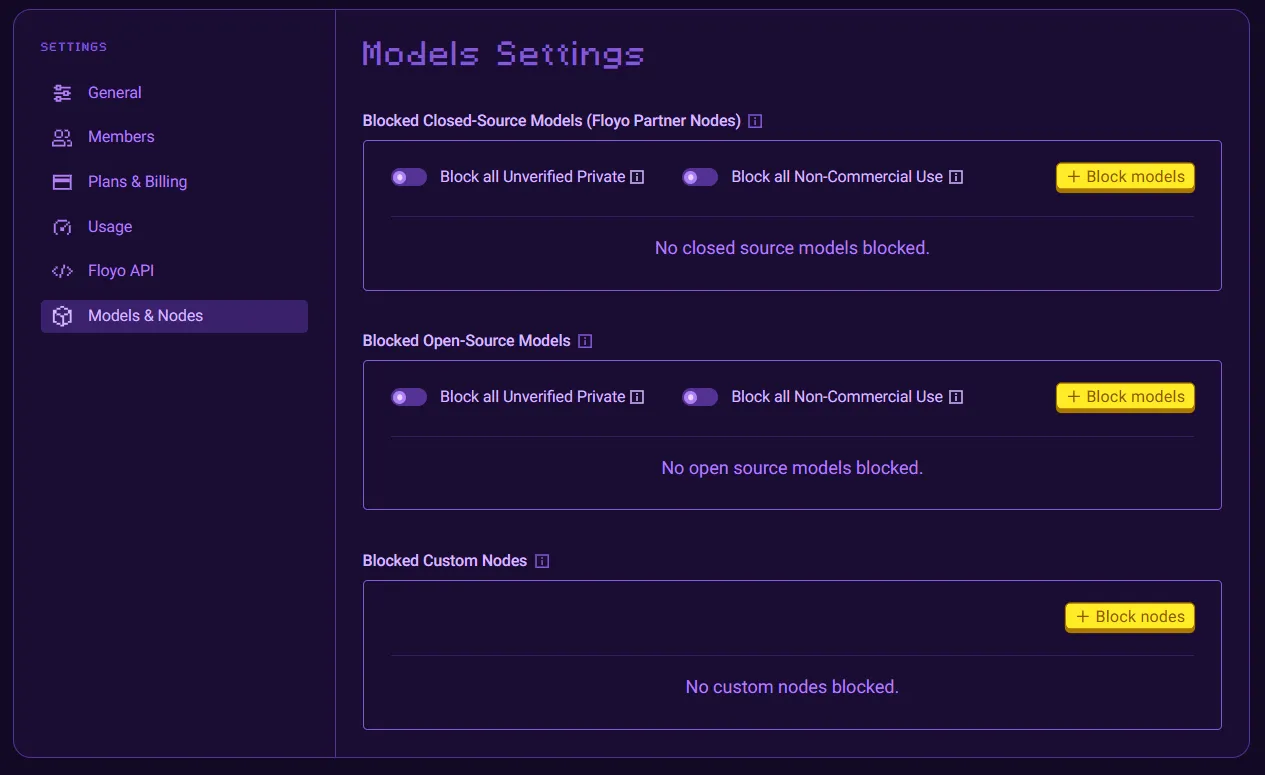
Block Closed-source and Open-source Models
- You can quickly set global team policies to Block all Unverified Private and/or Block all Non-Commercial Use models.
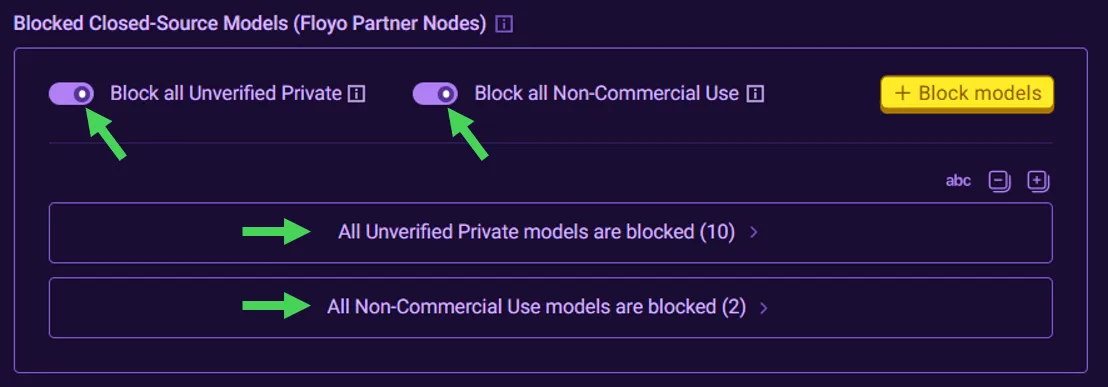
Verified Private
Models that the provider does not train on your data.
Commercial Use
Models with outputs cleared for commercial production.
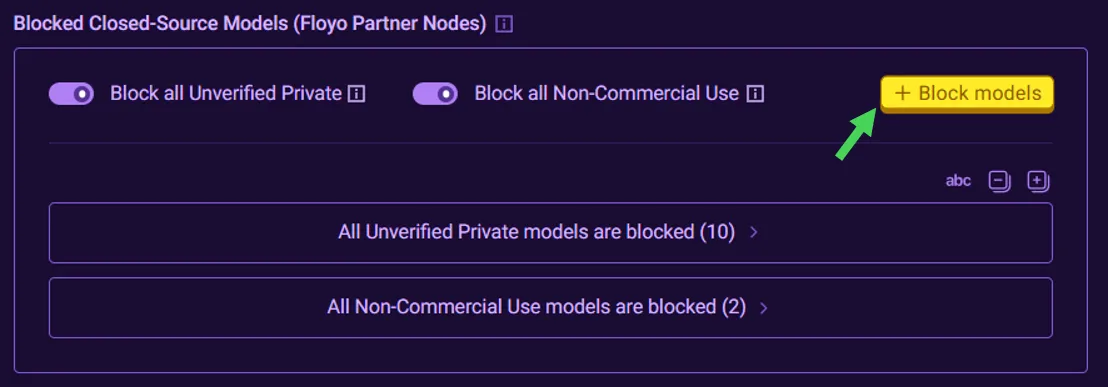
- You can also select individual models to exclude by clicking on the Block models button.
- By default, the list is filtered to only show models that you have not already blocked. You can filter on whether a model is already blocked, the Verified Private status, and the Commercial Use status.
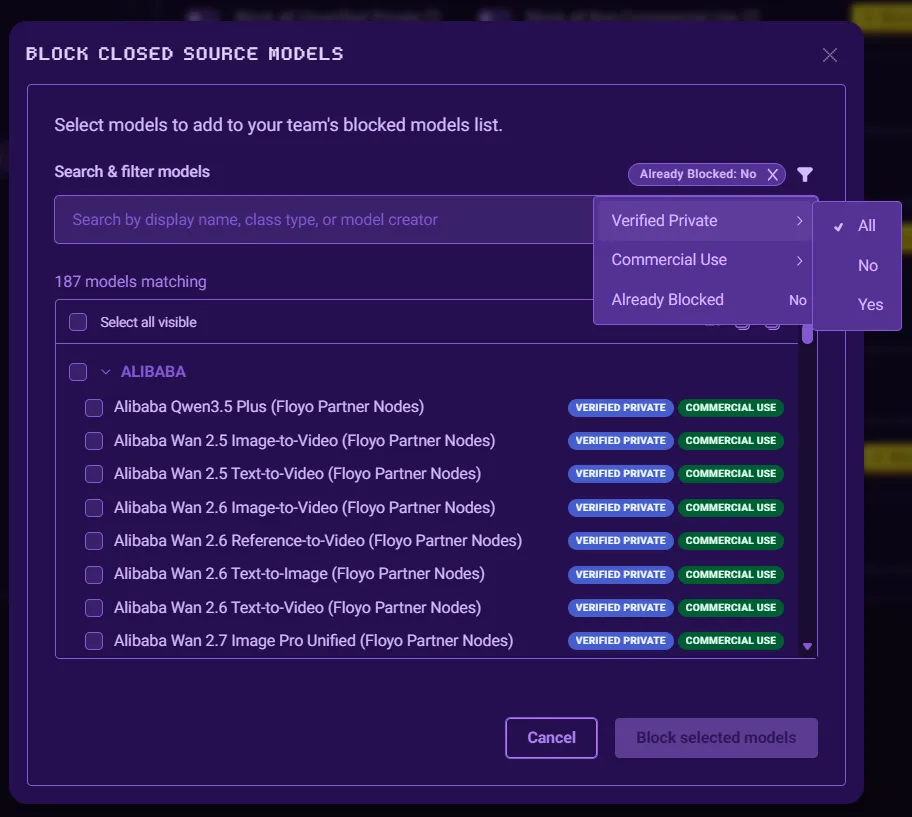
- You may also enter a search text which will search by model Name and Creator.
- Select specific models you wish to block. You can also select all results or all models by a given Creator.
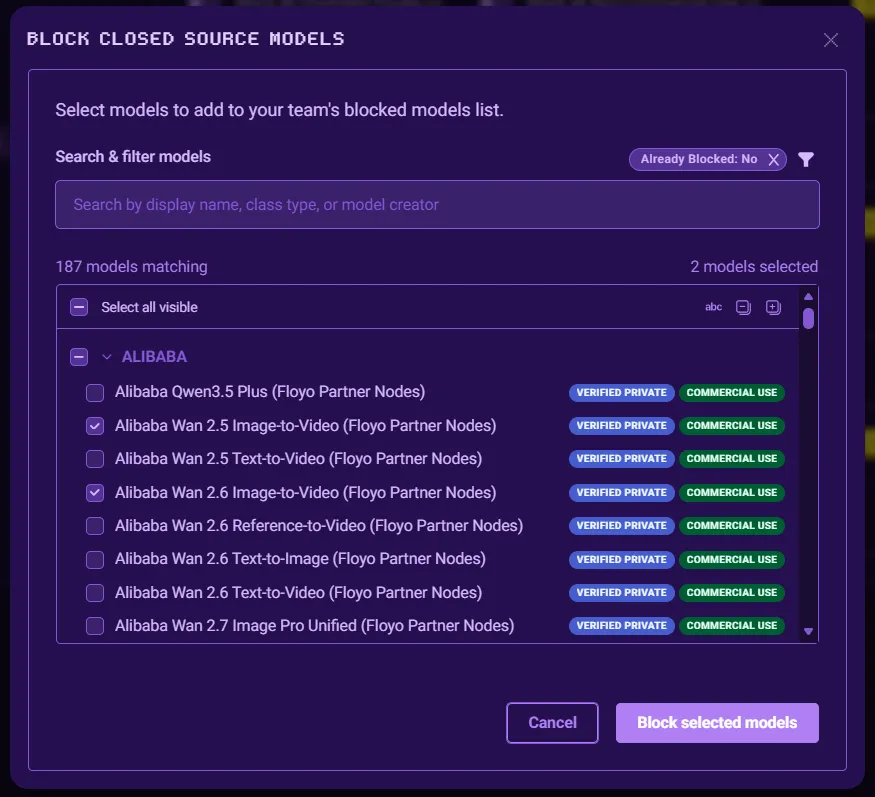
- Click the Block selected models button to apply your selection.
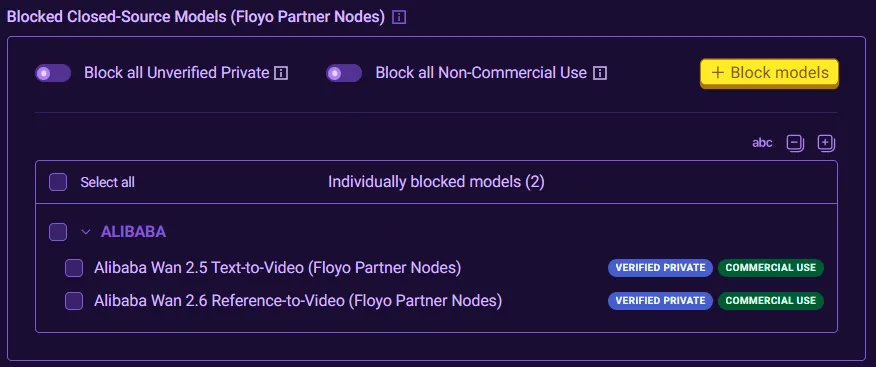
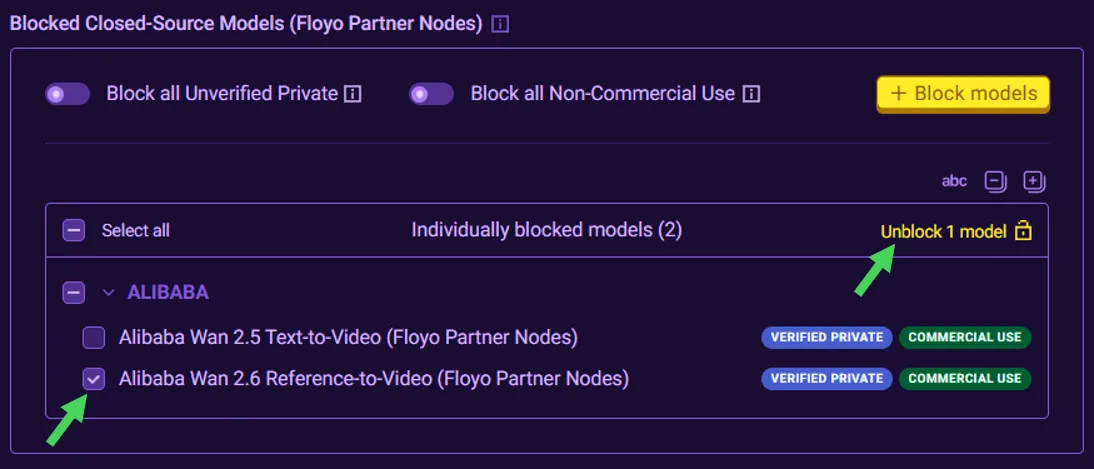
- To remove an individually blocked model, select the model and click the Remove N models button that appears.
Block Custom Nodes
You can block any installed custom node similar to how you Block Closed-source Models .
How enforcement works
Workflows with blocked models or custom nodes will fail whether ran via the web application or from the Floyo API.
Loading a workflow that uses a blocked closed-source model (Partner Node) or other blocked custom node will show a "Blocked Nodes" alert listing the corresponding Partner Node your team has blocked.
Blocked open-source models will no longer appear in nor be available for selection in the model selectors.