Floyo Agent
Private beta
Floyo Agent is in private beta for select customers. Please contact Sales for more information. Tip: Only Floyo can grant beta access. Enabling the agent in Settings is a separate step — your team must have access first.
Floyo Agent is an AI assistant that helps your team find and run workflows on Floyo. Describe what you want to create in plain language — the agent recommends top workflow best for your request, runs it, and saves outputs to your team's files.
This page covers how team Owners and Admins enable Floyo Agent and configure team-wide defaults. Team members can use the agent once it is enabled.
Enable Floyo Agent
Once Floyo has granted your team access, a team Owner or Admin must turn the agent on for the team.
Open Floyo Agent settings
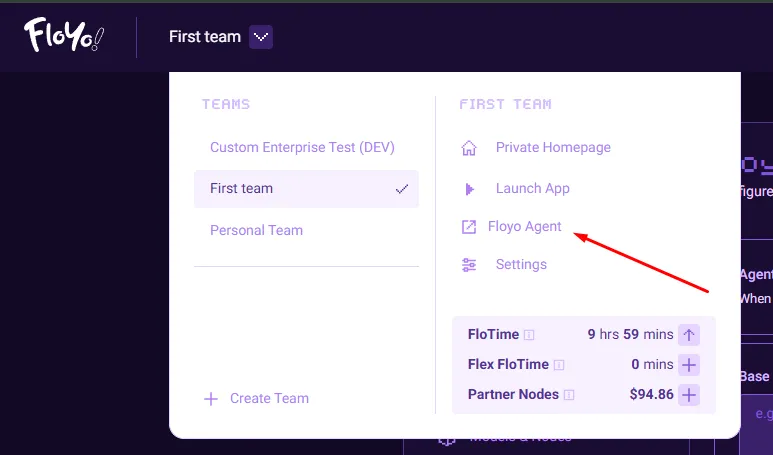
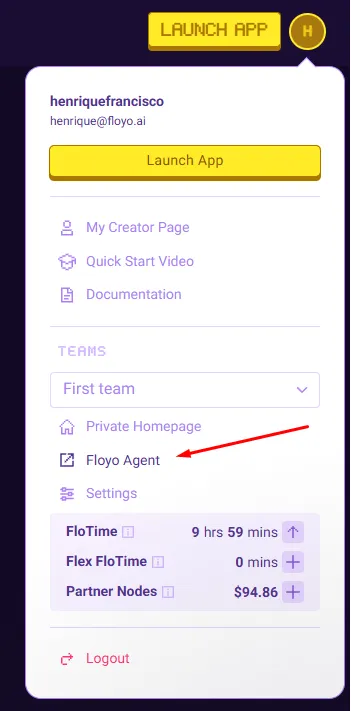
- Click your profile icon in the top-right corner.
- Under TEAMS, select the team you want to manage.
- Click Settings.
- In the left sidebar, select Floyo Agent (marked with a Beta badge).
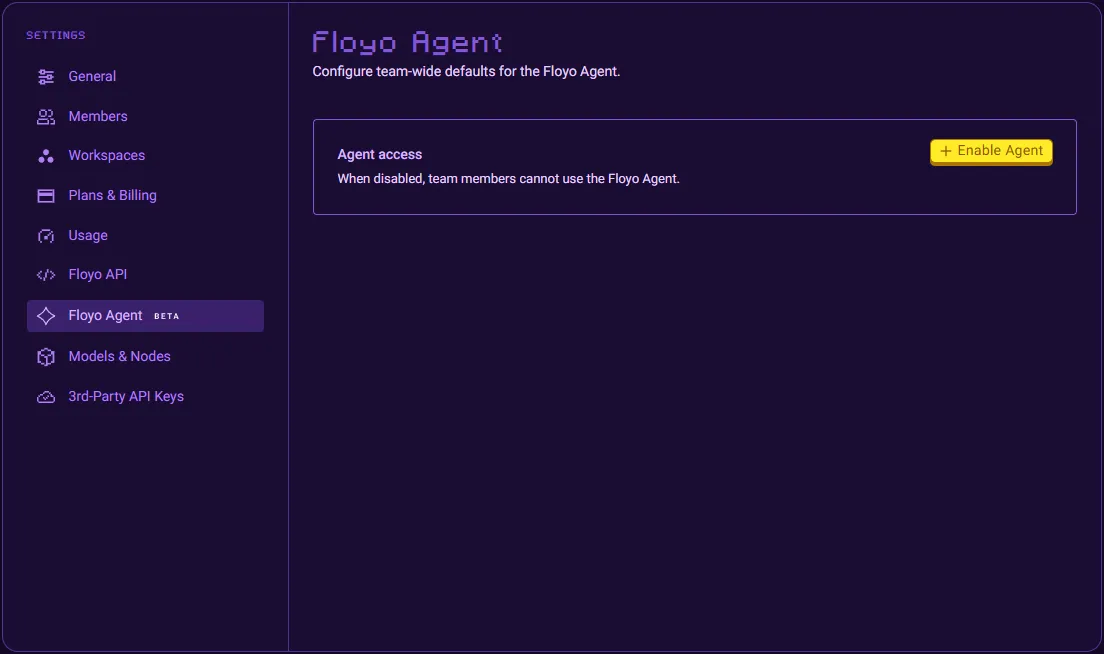
Turn the agent on
On the Floyo Agent settings page, find the Agent access section and click Enable Agent.
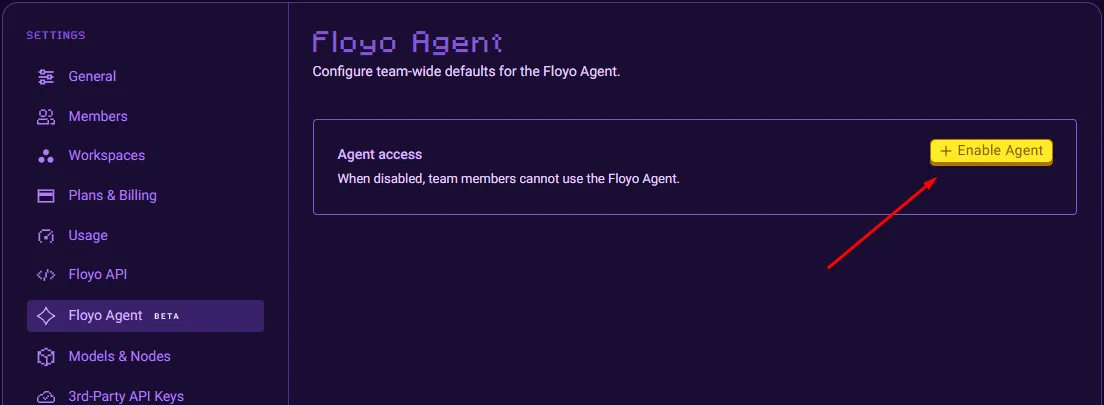
When enabled:
- Team members can open Floyo Agent from the team menu or profile menu.
- Additional configuration options appear on the same page.
- An Open Agent button appears so admins can launch the agent directly.
To turn the agent off, click Disable Agent and confirm. While disabled, team members see a message that the agent is unavailable for that team.
Configure team defaults
After enabling the agent, set optional team-wide defaults. Click Save changes when you are done.
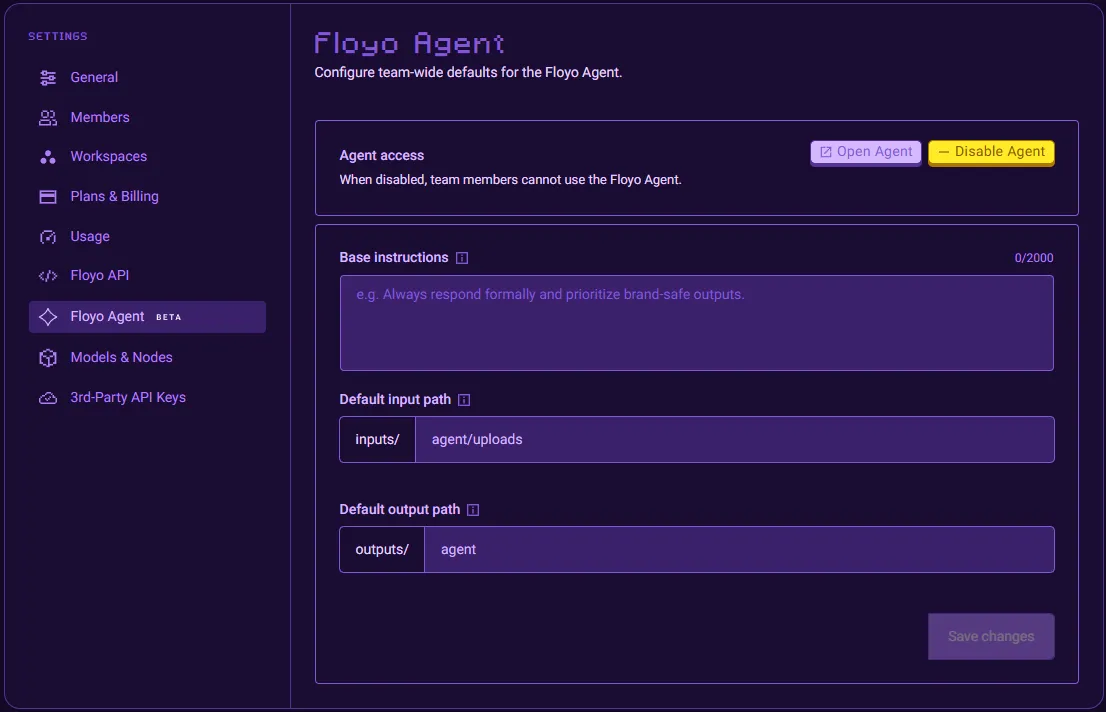
Base instructions
Base instructions are optional guidance the agent follows for every conversation on your team.
Use them to set tone, brand rules, or recurring preferences — for example:
- Optional — leave blank if you do not need team-wide guidance.
- Maximum 2,000 characters.
- Applies to all team members using Floyo Agent.
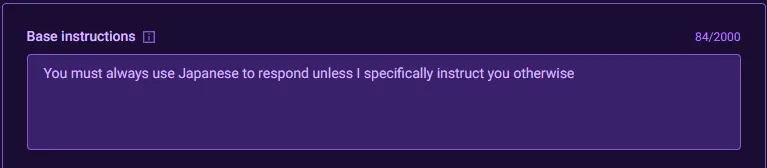
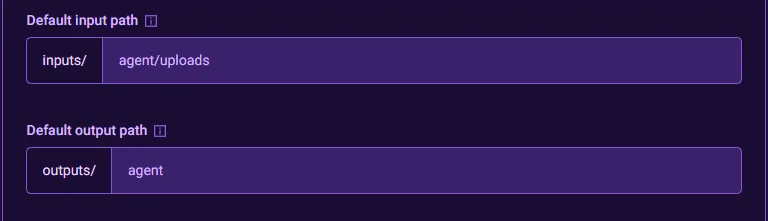
Default input and output paths
Control where the agent stores files in your team's File Browser. Paths are relative folder names inside your team storage — not full URLs.
Setting | Default | Purpose |
|---|---|---|
Default input path | agent/uploads | Folder for files the agent uploads or receives |
Default output path | agent | Folder for assets the agent generates |
You can use a single folder (e.g. agent) or nested paths (e.g. agent/uploads or projects/marketing/outputs).
Path rules
- Use letters, numbers, dots, dashes, underscores, and slashes.
- Do not start with / or use ...
- Examples: agent, agent/uploads, creative/outputs
Leave a path blank to clear a custom value. After saving, new agent sessions use the updated folders.
What the agent can access
Floyo Agent can search and run workflows from:
- Public verified Workflows on Floyo — the same catalog available to everyone on the platform.
- Your team's private Workflows — workflows saved to your team that are not public.
- Team favorites — workflows your team has starred so the agent **prefers** them when several options could fit.
The agent cannot access another team's private workflows. Favorites can include public or private team workflows.
What you can ask it to do
Floyo Agent understands everyday creative requests. When you open the agent, you will see four starting suggestions — you can click one or type your own message.
Use case | Example prompt |
|---|---|
Generate Image | An image of a golden retriever running through a field of sunflowers at golden hour, cinematic lighting |
Animate | Turn my image into a cinematic slow-motion video with gentle camera movement |
Edit Photo | Edit this photo to remove the background and place the subject in a futuristic cyberpunk city |
Upscale | Upscale this image to 4K while enhancing details and sharpness |
You can also describe what you need in plain language — for example, "I need to generate a product photo — which workflow is best?" The agent finds a matching workflow and runs it for you.
![[Screenshot: Floyo Agent home screen — chat input, four suggestion cards, left sidebar with Sessions and Run History, and side panel with Outputs / Published Workflows tabs.]](https://cdn.images.archbee.com/1hT0XoAHMhU4co8ZZjygd/9oYJB3-nnb8RH_ABQcgK-_image.png?format=webp "[Screenshot: Floyo Agent home screen — chat input, four suggestion cards, left sidebar with Sessions and Run History, and side panel with Outputs / Published Workflows tabs.]")
Favorite workflows
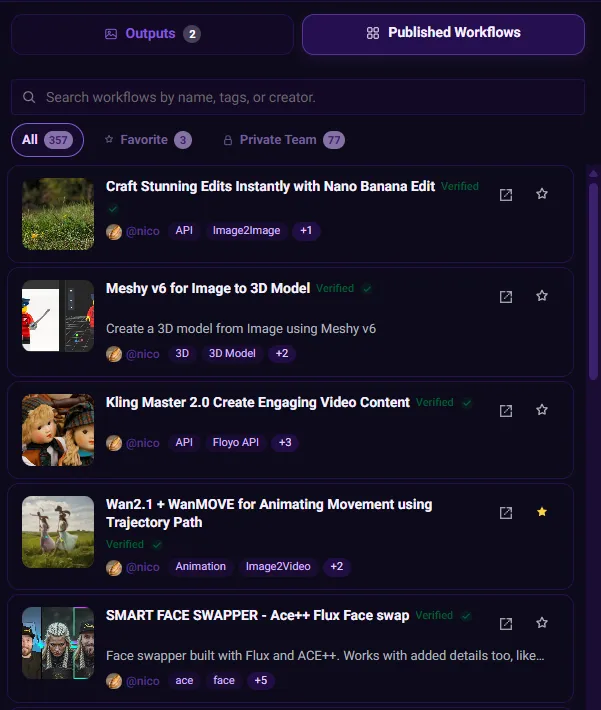
Inside Floyo Agent, open the Published Workflows panel. It has three tabs:
Tab | What you see |
|---|---|
All | Public workflows on Floyo |
Favorite | Workflows your team has starred for the agent to prefer |
Private Team | Your team's private workflows |
Favorite a workflow (star icon) from All or Private Team when you want the agent to prefer it over similar options.
Favorites are shared across your team — any member's favorites help guide the agent for everyone.
Add a note to a favorite
On the Favorite tab, you can add an optional note to each starred workflow — for example:
Use the note to explain when the workflow is best. The agent reads these notes when choosing between options, so favorites work best for go-to team workflows you use often.
When to favorite
Favorite your team's private workflows that the agent should reach for first — especially when multiple public workflows could fit the same request.
For team members
If Floyo Agent is enabled for your team, you can open it from:
- The team dropdown in the top navigation, or
- Your profile menu → Floyo Agent
Floyo Agent opens in a dedicated window. You do not need to configure anything in Settings to start chatting.
If you see Agent unavailable, ask a team Owner or Admin to enable Floyo Agent in Settings → Floyo Agent.